This tutorial will guide you through building a full-stack "Print on Demand" (POD) style workflow application from scratch. Users can upload a logo, provide a text prompt, select an image size, and generate a product mockup using a ComfyUI workflow deployed via ComfyDeploy.
You can use your own workflow and adapt this app to your workflow. As long as you follow the same principles, it will work.
You can find the code for this app on this repo:
https://github.com/if-ai/comfy-pod-workflow-fullstack
to
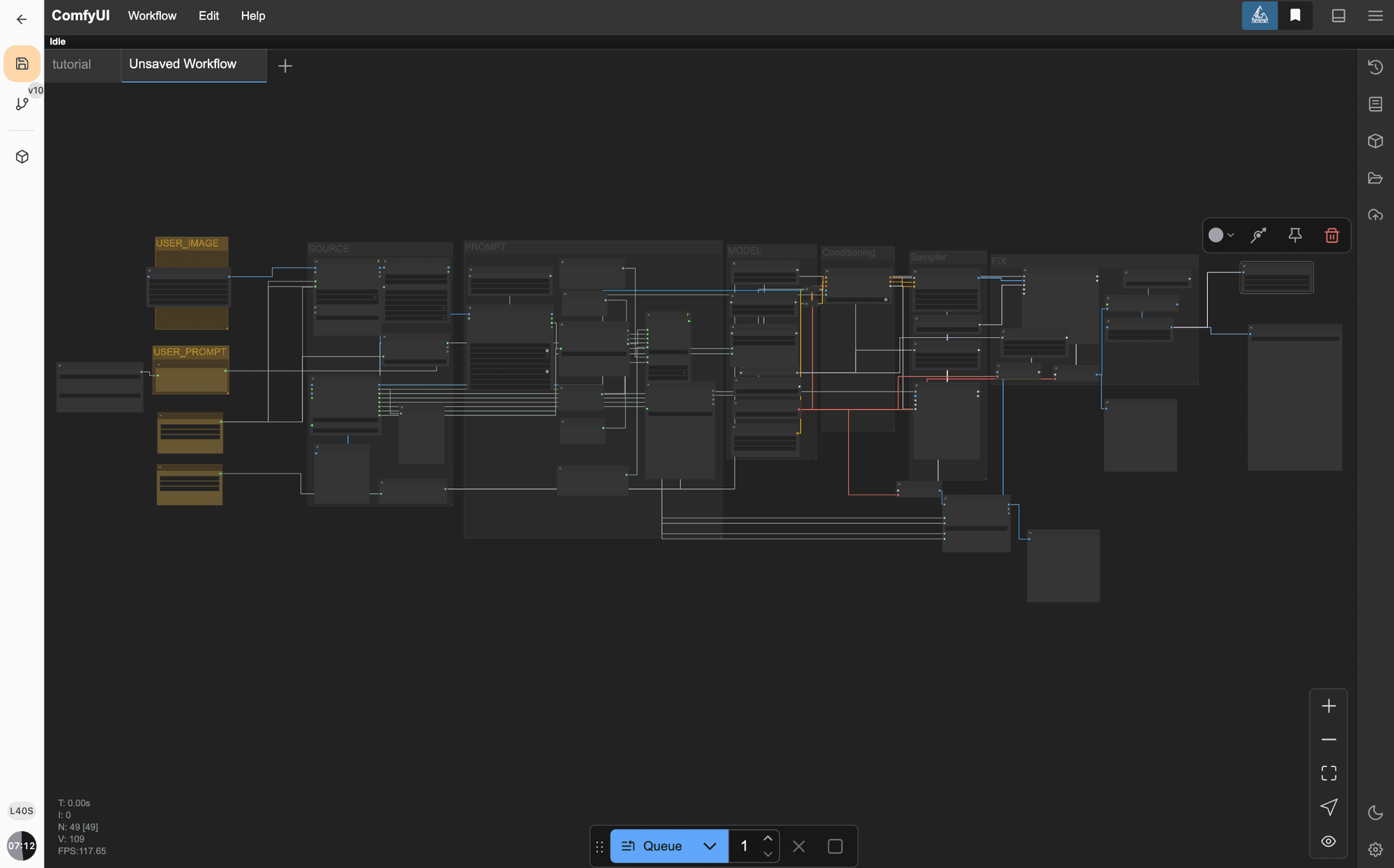
The full workflow is available on the root of the project as POD_workflow, and it includes the machine data
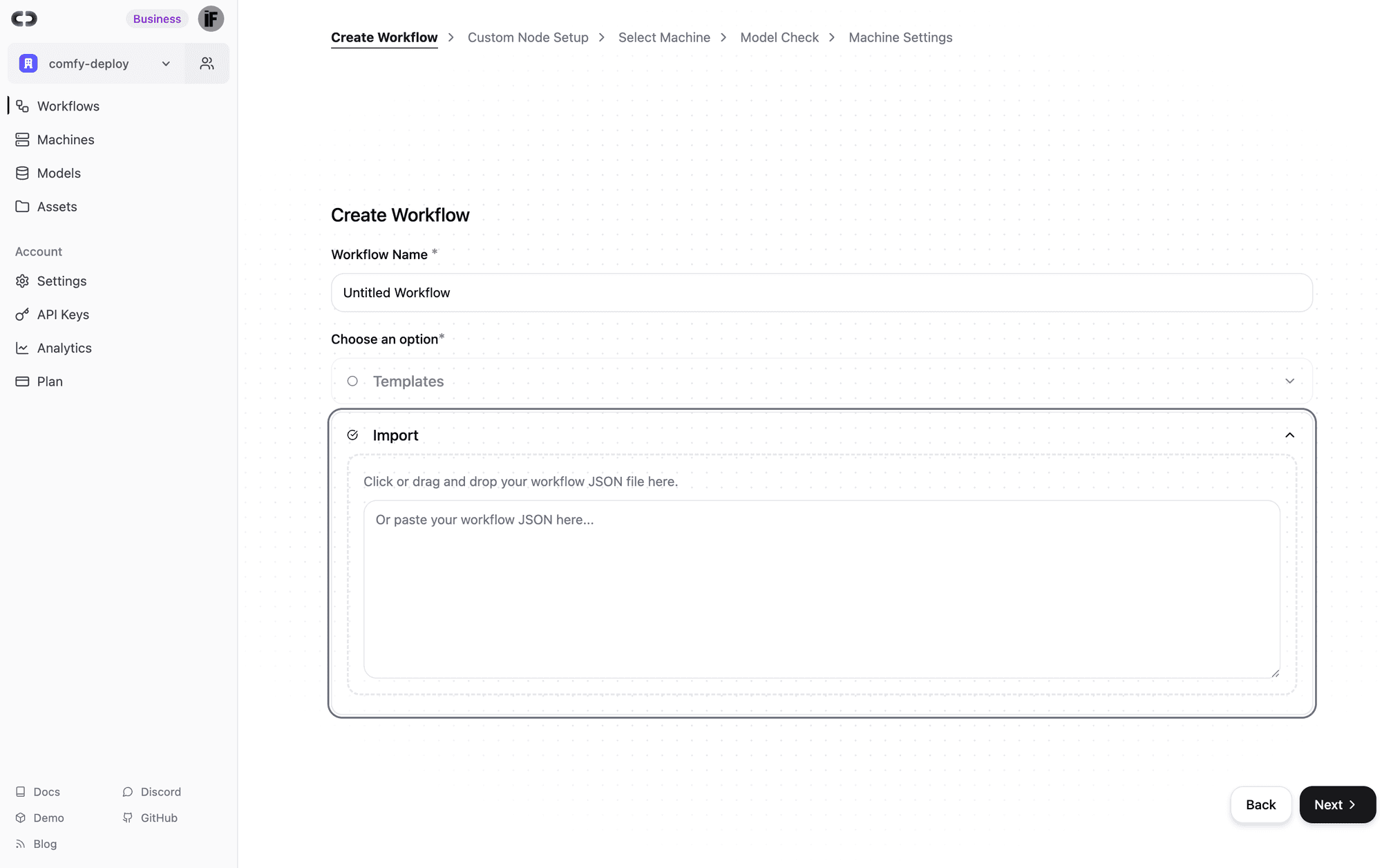
You can drag or import the workflow, and it will even create the needed machine for it to work. If you deploy into production , you can even scale the GPUs as needed
The application will feature:
Next.js 14+ with the App Router
ComfyDeploy for AI image generation via its API
Image Uploads converted to base64 for ComfyDeploy input
User Authentication using Clerk
Database using Drizzle ORM with SQLite (for local development) and compatibility with Turso (for production) to store run history
UI Components from Shadcn/UI
Real-time Progress Updates and image display
Webhook Integration for status updates from ComfyDeploy
(Optional) Localtunnel for testing webhooks locally
This project is inspired by the architecture of applications like the comfy-deploy-comfydeploy-fullstack-demo.
GitHub - comfy-deploy/comfydeploy-fullstack-demo: Full Stack Demo (Clerk, Turso, Nextjs 15)Full Stack Demo (Clerk, Turso, Nextjs 15). Contribute to comfy-deploy/comfydeploy-fullstack-demo development by creating an account on GitHub.GitHubcomfy-deploy
Prerequisites
Before you begin, ensure you have the following installed/set up:
Node.js (latest LTS version recommended)
Bun (as the package manager/runtime) or npm/yarn
A ComfyDeploy account (comfydeploy.com)
A ComfyUI workflow suitable for this POD task, deployed on ComfyDeploy. You'll need its Deployment ID.
An API Key from ComfyDeploy.
A Clerk account (clerk.com) for user authentication. You'll need your Publishable Key and Secret Key.
(Optional) A Turso account (turso.tech) if you plan to use Turso for your production database.
Understanding Your ComfyUI Workflow for API Use
For this application to work, your ComfyUI workflow needs to be set up to accept inputs via the ComfyDeploy API and to output the final image in a way we can retrieve.
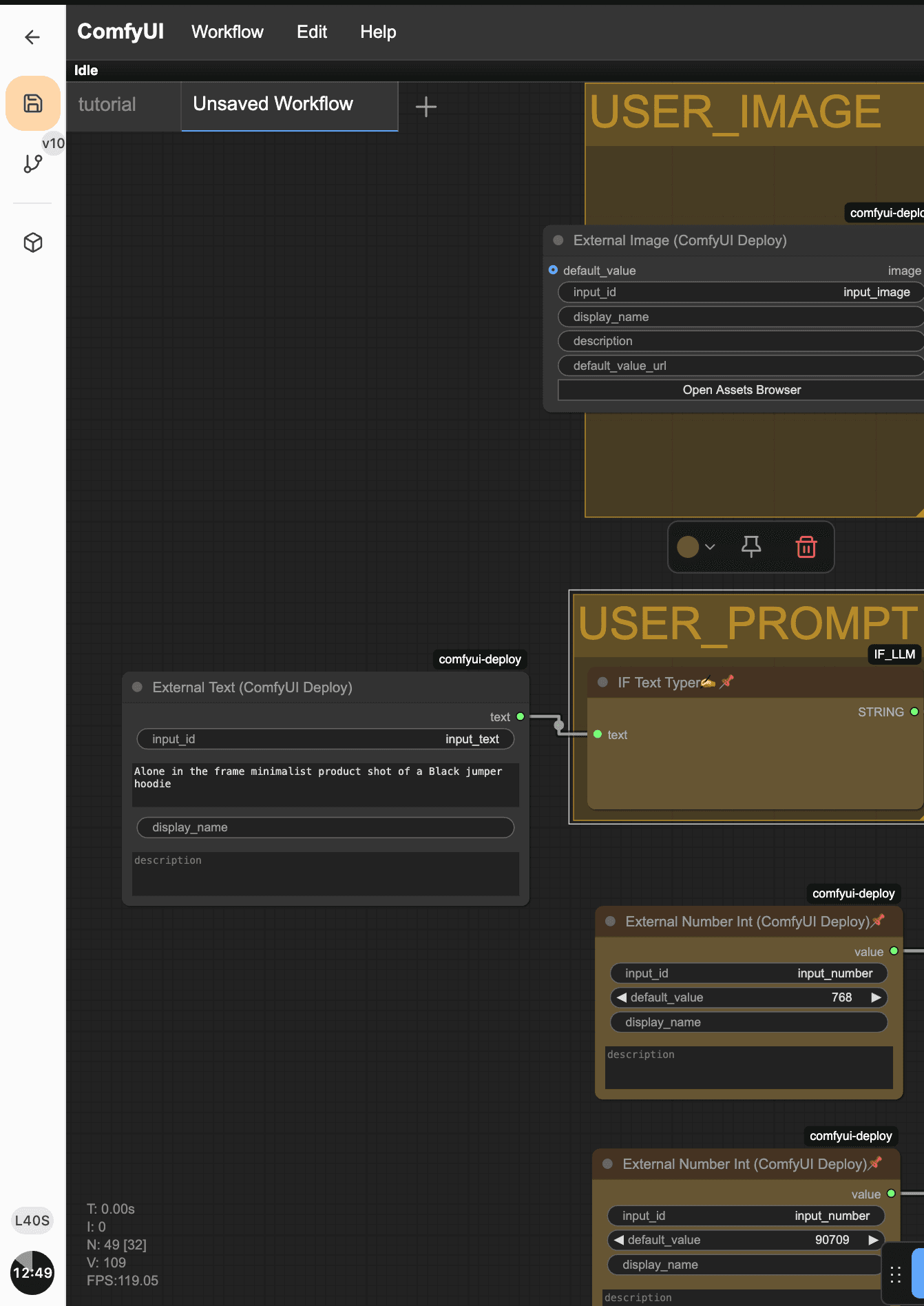
comfy deploy external nodes carry also api metadata
1. External Input Nodes (ComfyUI Deploy):
ComfyDeploy provides special "External Input" nodes that you add to your ComfyUI workflow. These nodes expose parameters that can be set when you call the API. For our POD workflow, you'll typically need:
ComfyUIDeployExternalImage: This node will receive our uploaded logo. You'll give it an input_id (e.g., "input_image"). It can accept image URLs or base64 encoded image data.
ComfyUIDeployExternalText: For the user's text prompt. Give it an input_id (e.g., "input_text").
ComfyUIDeployExternalNumberInt: For selecting the image size. Give it an input_id (e.g., "input_number").
Example: In your ComfyUI workflow, you'd replace a standard "Load Image" node with a ComfyUIDeployExternalImage node and connect its output to where the original image was used.
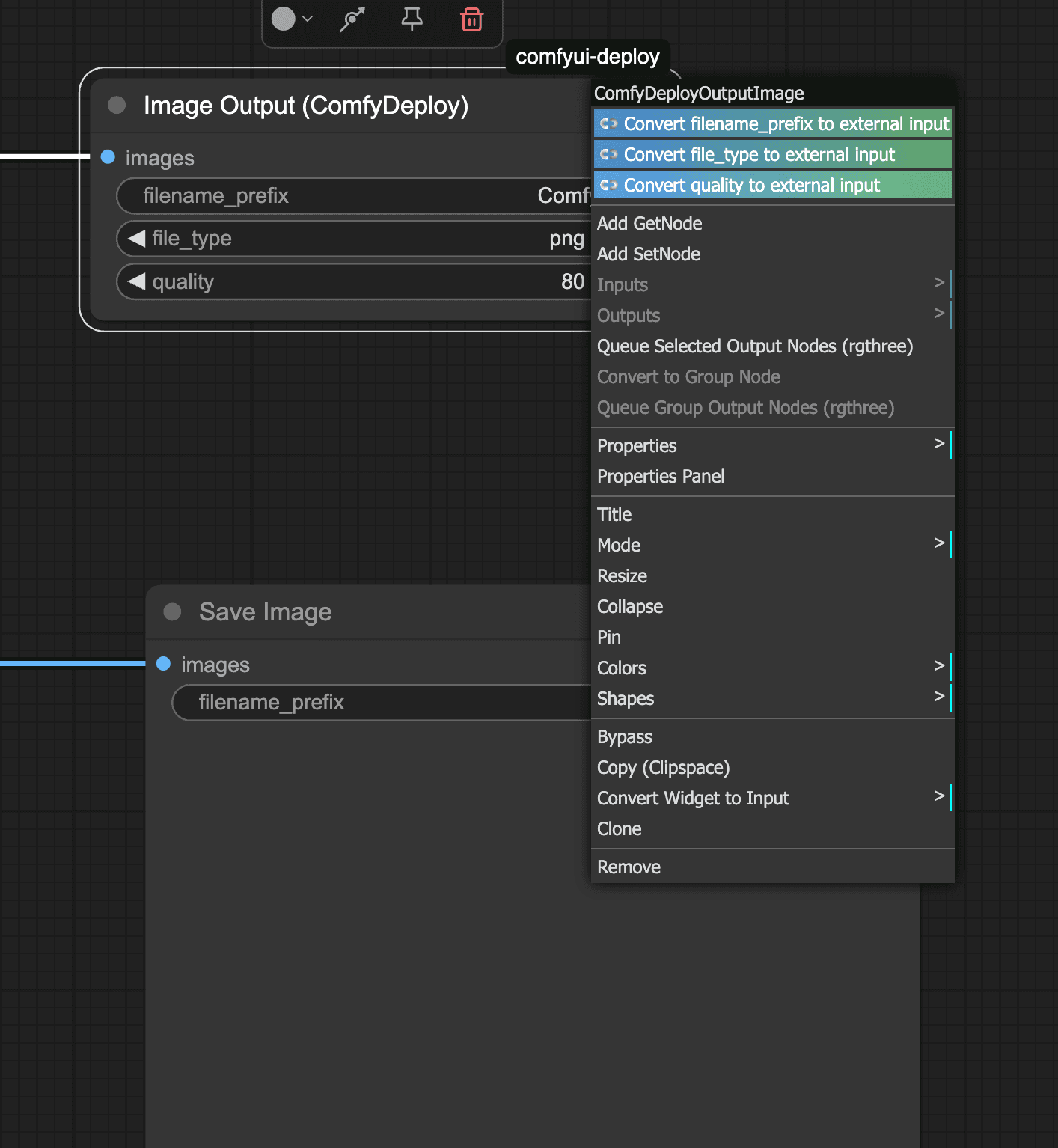
you can also right click on a node and convert it as external
2. Output Nodes:
ComfyDeploy needs to know which image is the final output. You have a couple of options:
ComfyDeployOutputImage Node: This is a special node provided by ComfyDeploy. You connect your final image to this node in your workflow. This is often the recommended way as it clearly designates an output for API purposes.
Standard SaveImage Node: You can also use a standard SaveImage node.
Identifying the Output Node ID:
When ComfyDeploy runs your workflow, it provides an array of outputs from various nodes. To get your final image, you need to identify the specific node_id (a number, like "343" in our case) or a unique output_id (a string you can define on some output nodes) of the node that produces the final image.
You can find this ID by:
Inspecting the workflow's JSON definition (which you provided earlier).
Running the workflow once via the ComfyDeploy UI or API and inspecting the JSON response for the outputs array. Look for the node that has your final image URL. The node_meta.node_id or a top-level node_id or output_id on the output object will be what you need.
For our application, we discovered the target image output was associated with node_meta.node_id: "343" for the ComfyDeployOutputImage node.
You can read more about it in the documentation:
https://www.comfydeploy.com/docs/v2/introduction
Let's start building!
Step 1: Create a New Next.js Project
Open your terminal and run:
When prompted:
Would you like to use TypeScript? Yes
Would you like to use ESLint? Yes
Would you like to use Tailwind CSS? Yes
Would you like to use src/ directory? Yes
Would you like to use App Router? Yes
Would you like to customize the default import alias (@/*)? No (or your preference)
Navigate into your new project directory:
Step 2: Install Dependencies
Install the necessary production and development dependencies using Bun:
Production Dependencies:
(Note: next-wrap was added implicitly by some operations, ensure it's there if issues arise, otherwise it might not be strictly needed if your Next.js version handles its functionality).
Development Dependencies:
Step 3: Set Up Environment Variables & Validation
Environment variables are crucial for storing sensitive keys and configuration.
Import Environment Validation in next.config.mjs:
To ensure environment variables are validated at build time and when the dev server starts, import the env.ts file at the top of your next.config.mjs:
import './src/types/env.ts';
const nextConfig = {
};
export default nextConfig;Create src/types/env.ts for Validation:
This file will use Zod to validate that all required environment variables are present and correctly formatted when the application starts.
import { z, type TypeOf } from "zod";
const zodEnv = z.object({
COMFY_DEPLOY_API_KEY: z.string().min(1, "COMFY_DEPLOY_API_KEY is required"),
COMFY_DEPLOY_WF_DEPLOYMENT_ID: z.string().min(1, "COMFY_DEPLOY_WF_DEPLOYMENT_ID is required"),
DATABASE_URL: z.string().min(1, "DATABASE_URL is required"),
DATABASE_AUTH_TOKEN: z.string().optional(),
NEXT_PUBLIC_CLERK_PUBLISHABLE_KEY: z.string().min(1, "NEXT_PUBLIC_CLERK_PUBLISHABLE_KEY is required"),
CLERK_SECRET_KEY: z.string().min(1, "CLERK_SECRET_KEY is required"),
NEXT_PUBLIC_CLERK_SIGN_IN_URL: z.string().default("/sign-in"),
NEXT_PUBLIC_CLERK_SIGN_UP_URL: z.string().default("/sign-up"),
});
try {
zodEnv.parse(process.env);
} catch (err) {
if (err instanceof z.ZodError) {
const { fieldErrors } = err.flatten();
const errorMessage = Object.entries(fieldErrors)
.map(([field, errors]) =>
errors ? `${field}: ${errors.join(", ")}` : field,
)
.join("\n ");
console.error(`❌ Missing or invalid environment variables:\n ${errorMessage}`);
process.exit(1);
}
}
declare global {
namespace NodeJS {
interface ProcessEnv extends TypeOf<typeof zodEnv> {}
}
}Create .env.local:
In the root of your project, create a file named .env.local and add the following, replacing the placeholder values with your actual keys and IDs:
Step 4: Set Up Clerk Authentication
Clerk will handle user sign-up, sign-in, and session management.
Create Sign-In Page src/app/sign-in/[[...sign-in]]/page.tsx:
Clerk provides UI components for sign-in.
import { SignIn } from "@clerk/nextjs";
export default function Page() {
return (
<div className="flex justify-center items-center h-screen">
<SignIn path="/sign-in" routing="path" />
</div>
);
}(You can create a similar src/app/sign-up/[[...sign-up]]/page.tsx if you want a dedicated sign-up page, though Clerk's default modals can handle it too.)
Create src/middleware.ts:
This middleware protects routes and defines public routes that don't require authentication.
import { clerkMiddleware, createRouteMatcher } from "@clerk/nextjs/server";
const isPublicRoute = createRouteMatcher([
'/',
'/sign-in(.*)',
'/sign-up(.*)',
'/api/webhook(.*)'
]);
export default clerkMiddleware((auth, req) => {
if (!isPublicRoute(req)) {
auth().protect();
}
});
export const config = {
matcher: ["/((?!.+\\.[\\w]+$|_next).*)", "/", "/(api|trpc)(.*)"],
};Step 5: Set Up Database (Drizzle ORM with SQLite/Turso)
We'll use Drizzle ORM to interact with our database. Locally, we'll use SQLite, and for production, you can switch to Turso.
Storing Run History: To show users their past generations.
Associating Runs with Users: Linking each run to a user_id from Clerk.
Persistence of Results: Storing the image_url results provides more control than relying solely on ComfyDeploy's temporary storage.
db:generate: Uses dotenv-cli to load .env.local and then runs drizzle-kit generate to create SQL migration files based on schema changes.
db:migrate: Runs our migrate.ts script to apply migrations.
db:studio: Opens Drizzle Studio to inspect your local database.
Generate and Run Initial Migration:
Apply the migration to your database (this creates local.db if it doesn't exist):
Generate migration files:
This will create a migrations folder with SQL files.
Add Scripts to package.json:
Update the scripts section in your package.json:
{
"scripts": {
"dev:next": "next dev --turbopack",
"dev:tunnel": "bun run localtunnel.mjs",
"dev": "concurrently --kill-others --prefix none \\\"bun run dev:next\\\" \\\"bun run dev:tunnel\\\"",
"build": "next build",
"start": "next start",
"lint": "next lint",
"db:generate": "dotenv -e .env.local -- bunx drizzle-kit generate",
"db:migrate": "bun run src/db/migrate.ts",
"db:studio": "drizzle-kit studio"
},
}Create Drizzle Kit Configuration drizzle.config.ts:
This file is for Drizzle Kit, the CLI tool for generating and managing migrations.
import type { Config } from 'drizzle-kit';
import 'dotenv/config';
import "./src/types/env";
export default {
out: './migrations',
schema: './src/db/schema.ts',
breakpoints: true,
dbCredentials: {
url: process.env.DATABASE_URL!,
},
dialect: 'sqlite',
} satisfies Config;Create Migration Script src/db/migrate.ts:
This script will apply schema changes to the database.
import { migrate } from "drizzle-orm/libsql/migrator";
import { drizzle } from "drizzle-orm/libsql";
import { createClient } from "@libsql/client";
import "dotenv/config";
import "../types/env";
async function main() {
const dbClient = createClient({
url: process.env.DATABASE_URL!,
authToken: process.env.DATABASE_AUTH_TOKEN,
});
const db = drizzle(dbClient);
console.log("⏳ Running migrations...");
await migrate(db, { migrationsFolder: "./migrations" });
console.log("✅ Migrations completed.");
process.exit(0);
}
main().catch((err) => {
console.error("❌ Migration failed:", err);
process.exit(1);
});Create Drizzle Client src/db/db.ts:
import { createClient } from "@libsql/client";
import { drizzle } from "drizzle-orm/libsql";
import * as schema from "./schema";
const client = createClient({
url: process.env.DATABASE_URL!,
authToken: process.env.DATABASE_AUTH_TOKEN,
});
export const db = drizzle(client, { schema });Define Database Schema src/db/schema.ts:
This file defines the structure of our runs table.
import { sql } from "drizzle-orm";
import { integer, sqliteTable, text, real } from "drizzle-orm/sqlite-core";
export const runs = sqliteTable("runs", {
run_id: text("run_id").notNull().primaryKey(),
user_id: text("user_id").notNull(),
createdAt: integer("created_at", { mode: "timestamp" }).default(
sql`(strftime('%s', 'now'))`
),
image_url: text("image_url"),
inputs: text("inputs", { mode: "json" }).$type<Record<string, any>>(),
live_status: text("live_status"),
progress: real("progress"),
});Why a Database?
Step 6: Set Up Shadcn/UI
Shadcn/UI provides beautifully designed components that you can copy and paste into your project.
Choose your preferred style (e.g., Default or New York).
Select a base color (e.g., Slate or Neutral).
Confirm CSS variable settings.
It will auto-detect paths like tailwind.config.ts src/app/globals.css. Accept the defaults or adjust if your setup is different.
This will create src/lib/utils.ts the src/components/ui/ directory.
Add Required Components:
This will add the specified components into src/components/ui/.
Initialize Shadcn/UI:
Answer the prompts:
Step 7: Create Core Application Structure and Layout
Modify Root Layout src/app/layout.tsx:
Wrap the application with necessary providers.
import type { Metadata } from "next";
import { Inter } from "next/font/google";
import "./globals.css";
import { ClerkProvider } from "@clerk/nextjs";
import { Toaster } from "@/components/ui/sonner";
import { QueryProvider } from "@/hooks/QueryProvider";
const inter = Inter({ subsets: ["latin"] });
export const metadata: Metadata = {
title: "Comfy POD Workflow Demo",
description: "Generate product mockups with your logo using ComfyDeploy.",
};
export default function RootLayout({
children,
}: Readonly<{
children: React.ReactNode;
}>) {
return (
<ClerkProvider>
<html lang="en" suppressHydrationWarning> {}
<QueryProvider>
<body className={inter.className}>
{children}
<Toaster /> {}
</body>
</QueryProvider>
</html>
</ClerkProvider>
);
}Create QueryProvider for TanStack Query:
@tanstack/react-query is used for client-side data fetching and caching, especially for polling run status.
"use client";
import { QueryClient, QueryClientProvider } from "@tanstack/react-query";
import { useState, type ReactNode } from "react";
export function QueryProvider({ children }: { children: ReactNode }) {
const [queryClient] = useState(() => new QueryClient());
return (
<QueryClientProvider client={queryClient}>
{children}
</QueryClientProvider>
);
}Step 8: Create Backend API Routes
These routes handle communication with ComfyDeploy and the database.
Route to List User's Runs (src/app/api/runs/route.ts):
Fetches historical runs for the logged-in user.
import { db } from "@/db/db";
import { runs } from "@/db/schema";
import { auth } from "@clerk/nextjs/server";
import { desc, eq } from "drizzle-orm";
import { NextRequest, NextResponse } from "next/server";
export async function GET(request: NextRequest) {
const authResult = await auth();
const userId = authResult.userId;
if (!userId) {
return NextResponse.json({ error: "Unauthorized" }, { status: 401 });
}
try {
const userRuns = await db
.select()
.from(runs)
.where(eq(runs.user_id, userId))
.orderBy(desc(runs.createdAt));
return NextResponse.json(userRuns);
} catch (error) {
console.error("Error fetching user runs:", error);
return NextResponse.json({ error: "Internal server error" }, { status: 500 });
}
}Route for Webhooks (src/app/api/webhook/route.ts):
ComfyDeploy sends POST requests to this endpoint when run events occur.
import { db } from "@/db/db";
import { runs } from "@/db/schema";
import { eq } from "drizzle-orm";
import { NextRequest, NextResponse } from "next/server";
import { findOutputImageById } from "@/lib/findOutputImage";
export async function POST(request: NextRequest) {
let payload;
try {
payload = await request.json();
} catch (error) {
console.error("Webhook: Invalid JSON payload", error);
return NextResponse.json({ message: "Invalid JSON payload" }, { status: 400 });
}
console.log("Webhook received:", JSON.stringify(payload, null, 2));
const { run_id, status, outputs, live_status, progress, event_type } = payload;
if (!run_id) {
console.error("Webhook: Missing run_id in payload");
return NextResponse.json({ message: "Missing run_id" }, { status: 400 });
}
try {
const updateData: Partial<typeof runs.$inferInsert> = {};
if (live_status !== undefined) updateData.live_status = live_status;
if (progress !== undefined) updateData.progress = progress;
if (event_type === "run.output" || (event_type === "run.updated" && status === "success")) {
const imageUrl = findOutputImageById(outputs, "343") ||
findOutputImageById(outputs, "final_result") ||
findOutputImageById(outputs, "126");
if (imageUrl) {
updateData.image_url = imageUrl;
console.log(`Webhook: Updating run ${run_id} with image URL: ${imageUrl}`);
} else {
console.log(`Webhook: Run ${run_id} ${status}, but final image URL not found in outputs.`);
}
}
if (Object.keys(updateData).length > 0) {
await db.update(runs)
.set(updateData)
.where(eq(runs.run_id, run_id));
console.log(`Webhook: DB updated for run_id ${run_id} with data:`, updateData);
}
return NextResponse.json({ message: "Webhook processed successfully" }, { status: 200 });
} catch (error) {
console.error(`Webhook: Error processing run_id ${run_id}:`, error);
return NextResponse.json({ message: "Webhook acknowledged, internal processing error" }, { status: 200 });
}
}Route to Get Run Status (src/app/api/run/[run_id]/route.ts):
This endpoint is polled by the frontend to get live updates on a run.
import { auth } from "@clerk/nextjs/server";
import { NextRequest, NextResponse } from "next/server";
const COMFY_API_BASE_URL = "https://api.comfydeploy.com";
export async function GET(
request: NextRequest,
{ params }: { params: { run_id: string } }
) {
const authResult = await auth();
const userId = authResult.userId;
if (!userId) {
return NextResponse.json({ error: "Unauthorized" }, { status: 401 });
}
const { run_id } = params;
if (!run_id) {
return NextResponse.json({ error: "Missing run_id" }, { status: 400 });
}
try {
const apiResponse = await fetch(`${COMFY_API_BASE_URL}/api/run/${run_id}?queue_position=true`, {
headers: {
'Authorization': `Bearer ${process.env.COMFY_DEPLOY_API_KEY!}`
}
});
if (!apiResponse.ok) {
const errorText = await apiResponse.text();
return NextResponse.json({ error: `Failed to fetch run status: ${errorText}` }, { status: apiResponse.status });
}
const jsonData = await apiResponse.json();
const { live_status, status, outputs, progress, queue_position } = jsonData;
return NextResponse.json({ live_status, status, outputs, progress, queue_position });
} catch (error) {
console.error("Error fetching ComfyDeploy run status:", error);
return NextResponse.json({ error: "Internal server error" }, { status: 500 });
}
}Route to Queue a Run (src/app/api/run/route.ts):
This endpoint receives user inputs, queues a run with ComfyDeploy, and records it in the database.
import { db } from "@/db/db";
import { runs } from "@/db/schema";
import { auth } from "@clerk/nextjs/server";
import { NextRequest, NextResponse } from "next/server";
import { headers as nextHeaders } from "next/headers";
import { promises as fs } from 'node:fs';
import { ComfyDeploy } from "comfydeploy";
const cd = new ComfyDeploy({
bearer: process.env.COMFY_DEPLOY_API_KEY!,
});
const isDevelopment = process.env.NODE_ENV === "development";
async function getEndpoint() {
const headersList = await nextHeaders();
const host = headersList.get("host") || "";
const protocol = headersList.get("x-forwarded-proto") || (host.includes("localhost") ? "http" : "https");
let endpoint = `${protocol}://${host}`;
if (isDevelopment && host.includes("localhost")) {
const tunnelUrlFilePath = "tunnel_url.txt";
try {
const tunnelUrl = await fs.readFile(tunnelUrlFilePath, "utf-8");
endpoint = tunnelUrl.trim();
console.log("Using tunnel URL for webhook:", endpoint);
} catch (error) {
console.warn(
`localtunnel: Failed to read tunnel URL from ${tunnelUrlFilePath}. Using host: ${endpoint}. Error: ${error instanceof Error ? error.message : String(error)}`,
);
}
}
return endpoint;
}
export async function POST(request: NextRequest) {
const authResult = await auth();
const userId = authResult.userId;
if (!userId) {
return NextResponse.json({ error: "Unauthorized" }, { status: 401 });
}
const reqBody = await request.json();
const { logoUrl, promptText, imageSize } = reqBody;
if (!logoUrl || !promptText || !imageSize) {
return NextResponse.json({ error: "Missing required fields" }, { status: 400 });
}
const comfyInputs = {
input_image: logoUrl,
input_text: promptText,
input_number: parseInt(imageSize, 10),
};
const webhookUrl = `${await getEndpoint()}/api/webhook?target_events=run.output,run.updated`;
console.log("Webhook will be sent to:", webhookUrl);
try {
const response = await cd.run.deployment.queue({
deploymentId: process.env.COMFY_DEPLOY_WF_DEPLOYMENT_ID!,
webhook: webhookUrl,
inputs: comfyInputs,
});
if (response && response.runId) {
const runId = response.runId;
await db.insert(runs).values({
run_id: runId,
user_id: userId,
inputs: comfyInputs,
});
return NextResponse.json({ run_id: runId });
} else {
console.error("ComfyDeploy SDK error: No runId in response or response is unexpected.", response);
let errorMessage = "Failed to create run: Unexpected response from ComfyDeploy SDK.";
if (typeof response === 'object' && response !== null && 'error' in response && typeof (response as any).error === 'string') {
errorMessage = `Failed to create run: ${(response as any).error}`;
}
return NextResponse.json({ error: errorMessage }, { status: 500 });
}
} catch (error: any) {
console.error("Error calling ComfyDeploy SDK or DB:", error);
let detail = "Internal server error";
if (error.message) {
detail = error.message;
}
if (error.response && error.response.data && error.response.data.detail) {
detail = error.response.data.detail;
}
return NextResponse.json({ error: detail }, { status: 500 });
}
}Step 9: Create Frontend Components
User Runs History Component (src/components/UserRuns.tsx):
Displays a grid of previously generated images for the logged-in user.
"use client";
import { useQuery } from "@tanstack/react-query";
import { ImageGenerationResult } from "./ImageGenerationResult";
import { Card, CardContent, CardDescription, CardHeader, CardTitle } from "./ui/card";
import { Skeleton } from "./ui/skeleton";
import { AlertTriangle, Sparkle } from "lucide-react";
import { formatDistanceToNow } from 'date-fns';
interface Run {
run_id: string;
createdAt: number | Date | string;
image_url: string | null;
inputs: Record<string, any>;
live_status?: string | null;
progress?: number | null;
}
export function UserRuns() {
const { data: userRuns, isLoading, error } = useQuery<Run[]>({
queryKey: ["userRuns"],
queryFn: () => fetch("/api/runs").then((res) => {
if (!res.ok) throw new Error("Failed to fetch runs");
return res.json();
}),
refetchInterval: 30000,
});
if (isLoading) {
return (
<div className="w-full max-w-4xl mx-auto mt-8">
<Skeleton className="h-10 w-1/3 mb-6" />
<div className="grid grid-cols-1 sm:grid-cols-2 lg:grid-cols-3 gap-4">
{[...Array(3)].map((_, i) => (
<Skeleton key={i} className="h-72 w-full rounded-lg" />
))}
</div>
</div>
);
}
if (error) {
return (
<div className="w-full max-w-3xl mx-auto mt-8 p-4 bg-red-100 border border-red-400 text-red-700 rounded-md flex items-center">
<AlertTriangle className="h-5 w-5 mr-3" />
<p>Error loading your previous generations. Please try again later.</p>
</div>
);
}
if (!userRuns || userRuns.length === 0) {
return (
<div className="w-full max-w-3xl mx-auto mt-12 text-center text-gray-500">
<Sparkle size={32} className="mx-auto mb-3 text-gray-400" />
<p className="text-lg">You haven't generated any images yet.</p>
<p className="text-sm">Start creating to see your history here!</p>
</div>
);
}
return (
<div className="w-full max-w-4xl mx-auto mt-8 space-y-6 pb-16">
<h2 className="text-2xl font-semibold text-center mb-6">Your Previous Generations</h2>
<div className="grid grid-cols-1 sm:grid-cols-2 lg:grid-cols-3 gap-4">
{userRuns.map((run) => (
<Card key={run.run_id} className="overflow-hidden group relative shadow-sm hover:shadow-md transition-shadow">
<CardHeader className="p-4">
<CardTitle className="text-sm truncate" title={run.inputs?.input_text || 'Prompt N/A'}>
{run.inputs?.input_text || 'Unnamed Run'}
</CardTitle>
<CardDescription className="text-xs">
{run.createdAt ?
formatDistanceToNow(
typeof run.createdAt === 'number' ? new Date(run.createdAt * 1000) : new Date(run.createdAt),
{ addSuffix: true }
)
: 'Date N/A'}
</CardDescription>
</CardHeader>
<CardContent className="p-0">
{run.image_url ? (
<NextImage
src={run.image_url}
alt={`Generated image for run ${run.run_id.substring(0,8)}`}
width={512}
height={512}
className="w-full h-auto object-cover aspect-square"
/>
) : (
<ImageGenerationResult runId={run.run_id} className="aspect-square" />
)}
</CardContent>
<div className="absolute inset-0 bg-black/80 p-4 opacity-0 group-hover:opacity-100 transition-opacity duration-300 flex flex-col justify-end text-white text-xs overflow-y-auto">
{run.inputs && Object.entries(run.inputs).map(([key, value]) => (
(key === "input_image" && typeof value === "string" && value.startsWith("data:image")) ? null :
<div key={key} className="mb-1">
<span className="font-semibold capitalize">{key.replace(/_/g, ' ')}:</span>
<span className="ml-1 break-all">{typeof value === 'object' ? JSON.stringify(value) : String(value)}</span>
</div>
))}
</div>
</Card>
))}
</div>
</div>
);
}Main Application UI (src/components/PodWorkflowApp.tsx):
This component provides the form for logo upload, prompt, and size selection.
"use client";
import { Button } from "@/components/ui/button";
import { Card, CardContent, CardHeader, CardTitle } from "@/components/ui/card";
import { Input } from "@/components/ui/input";
import { Label } from "@/components/ui/label";
import { Select, SelectContent, SelectItem, SelectTrigger, SelectValue } from "@/components/ui/select";
import { WandSparklesIcon, UploadCloudIcon, XIcon } from "lucide-react";
import { useState, FormEvent, ChangeEvent, useRef } from "react";
import { toast } from "sonner";
import { ImageGenerationResult } from "./ImageGenerationResult";
import { useQueryClient } from "@tanstack/react-query";
import NextImage from 'next/image';
export function PodWorkflowApp() {
const [selectedFile, setSelectedFile] = useState<File | null>(null);
const [base64LogoDataUrl, setBase64LogoDataUrl] = useState<string | null>(null);
const fileInputRef = useRef<HTMLInputElement>(null);
const [promptText, setPromptText] = useState<string>("Alone in the frame minimalist product shot of a Black baseball cap.");
const [imageSize, setImageSize] = useState<string>("768");
const [isLoading, setIsLoading] = useState(false);
const [isUploading, setIsUploading] = useState(false);
const [currentRunId, setCurrentRunId] = useState<string | null>(null);
const queryClientHook = useQueryClient();
const handleFileChange = (event: ChangeEvent<HTMLInputElement>) => {
const file = event.target.files?.[0];
if (file) {
if (file.size > 4 * 1024 * 1024) {
toast.error("File is too large. Please select a file smaller than 4MB.");
if (fileInputRef.current) fileInputRef.current.value = "";
return;
}
setSelectedFile(file);
setIsUploading(true);
const reader = new FileReader();
reader.onloadend = () => {
setBase64LogoDataUrl(reader.result as string);
setIsUploading(false);
toast.success("Logo selected: " + file.name);
};
reader.onerror = () => {
setIsUploading(false);
setSelectedFile(null);
toast.error("Failed to read file.");
}
reader.readAsDataURL(file);
}
};
const clearLogoSelection = () => {
setSelectedFile(null);
setBase64LogoDataUrl(null);
if (fileInputRef.current) {
fileInputRef.current.value = "";
}
};
const handleSubmit = async (e: FormEvent) => {
e.preventDefault();
if (!base64LogoDataUrl) {
toast.error("Please select a logo image to upload.");
return;
}
if (!promptText.trim()) {
toast.error("Please enter a prompt.");
return;
}
setIsLoading(true);
setCurrentRunId(null);
try {
const response = await fetch("/api/run", {
method: "POST",
headers: { "Content-Type": "application/json" },
body: JSON.stringify({ logoUrl: base64LogoDataUrl, promptText, imageSize }),
});
if (!response.ok) {
const errorData = await response.json();
toast.error(`Error: ${errorData.error || "Failed to start generation."}`);
setIsLoading(false);
return;
}
const data = await response.json();
if (data.run_id) {
setCurrentRunId(data.run_id);
toast.success("Generation started! Run ID: " + data.run_id);
queryClientHook.invalidateQueries({ queryKey: ["userRuns"] });
} else {
toast.error("Failed to get Run ID from server.");
}
} catch (error: any) {
toast.error(`An unexpected error occurred: ${error.message}`);
console.error(error);
} finally {
setIsLoading(false);
}
};
return (
<div className="w-full max-w-xl mx-auto space-y-6">
<Card>
<CardHeader>
<CardTitle>POD Workflow Generator</CardTitle>
</CardHeader>
<CardContent>
<form onSubmit={handleSubmit} className="space-y-6">
<div>
<Label htmlFor="logoFile">Logo Image (PNG, JPG, WEBP, <4MB)</Label>
<div className="mt-1 flex items-center space-x-2">
<Button
type="button"
variant="outline"
onClick={() => fileInputRef.current?.click()}
disabled={isUploading}
>
<UploadCloudIcon className="mr-2 h-4 w-4" />
{isUploading ? "Processing..." : (base64LogoDataUrl ? "Change Logo" : "Upload Logo")}
</Button>
<input
id="logoFile"
type="file"
accept="image/png, image/jpeg, image/webp"
onChange={handleFileChange}
className="hidden"
ref={fileInputRef}
/>
{base64LogoDataUrl && (
<Button
type="button"
variant="ghost"
size="icon"
onClick={clearLogoSelection}
title="Clear selection"
disabled={isUploading}
>
<XIcon className="h-4 w-4" />
</Button>
)}
</div>
{base64LogoDataUrl && (
<div className="mt-4 p-2 border rounded-md w-32 h-32 relative overflow-hidden bg-slate-50">
<NextImage src={base64LogoDataUrl} alt="Logo preview" layout="fill" objectFit="contain" />
</div>
)}
</div>
<div>
<Label htmlFor="promptText">Prompt</Label>
<Input
id="promptText"
value={promptText}
onChange={(e) => setPromptText(e.target.value)}
placeholder="Enter your prompt"
required
/>
</div>
<div>
<Label htmlFor="imageSize">Image Size (Square)</Label>
<Select value={imageSize} onValueChange={setImageSize}>
<SelectTrigger id="imageSize" className="w-full">
<SelectValue placeholder="Select size" />
</SelectTrigger>
<SelectContent>
<SelectItem value="512">512x512</SelectItem>
<SelectItem value="768">768x768</SelectItem>
<SelectItem value="1024">1024x1024</SelectItem>
</SelectContent>
</Select>
</div>
<Button
type="submit"
disabled={isLoading || isUploading || !base64LogoDataUrl}
className="w-full"
>
{isLoading ? "Generating..." : (<><WandSparklesIcon className="mr-2 h-4 w-4" /> Generate Image</>)}
</Button>
</form>
</CardContent>
</Card>
{currentRunId && (
<Card className="mt-6">
<CardHeader>
<CardTitle>Generation Result (Run ID: {currentRunId.substring(0,8)}...)</CardTitle>
</CardHeader>
<CardContent>
<ImageGenerationResult runId={currentRunId} />
</CardContent>
</Card>
)}
</div>
Image Generation Result Component (src/components/ImageGenerationResult.tsx):
Displays progress and the final (or preview) image.
"use client";
import { Progress } from "@/components/ui/progress";
import { Skeleton } from "@/components/ui/skeleton";
import { findOutputImageById } from "@/lib/findOutputImage";
import { cn } from "@/lib/utils";
import { useQuery } from "@tanstack/react-query";
import { motion, AnimatePresence } from "framer-motion";
import { LoaderCircle } from "lucide-react";
import { useEffect, useState } from "react";
export function ImageGenerationResult({
runId,
className,
}: { runId: string } & React.ComponentProps<"div">) {
const [imageUrl, setImageUrl] = useState<string | null>(null);
const [previewImageUrl, setPreviewImageUrl] = useState<string | null>(null);
const [currentStatus, setCurrentStatus] = useState<string>("preparing");
const [currentProgress, setCurrentProgress] = useState<number | undefined>();
const [liveGenerationStatus, setLiveGenerationStatus] = useState<string | null>(null);
const [isTerminalStatus, setIsTerminalStatus] = useState(false);
const [queuePos, setQueuePos] = useState<number | null>(null);
const { data: runDetails, isLoading: isLoadingDetails } = useQuery({
queryKey: ["runDetails", runId],
queryFn: async () => {
const res = await fetch(`/api/run/${runId}`);
if (!res.ok) {
console.error("Failed to fetch run details for runId:", runId);
return null;
}
return res.json();
},
refetchInterval: (query) => {
const data: any = query.state.data;
if (data?.status === "success" && (findOutputImageById(data.outputs, "343") || findOutputImageById(data.outputs, "final_result") || findOutputImageById(data.outputs, "126"))) return false;
if (["failed", "success", "cancelled", "timeout"].includes(data?.status)) return false;
return 2000;
},
enabled: !!runId && !isTerminalStatus,
});
useEffect(() => {
if (runDetails) {
setCurrentStatus(runDetails.status);
setCurrentProgress(runDetails.progress);
setLiveGenerationStatus(runDetails.live_status ?? null);
setQueuePos(runDetails.queue_position);
const intermediate = findOutputImageById(runDetails.outputs, "intermediate_result");
if (intermediate) setPreviewImageUrl(intermediate);
if (runDetails.status === "success") {
const finalImg = findOutputImageById(runDetails.outputs, "343") ||
findOutputImageById(runDetails.outputs, "126") ||
findOutputImageById(runDetails.outputs, "final_result");
if (finalImg) {
setImageUrl(finalImg);
setIsTerminalStatus(true);
} else if (runDetails.outputs?.length > 0) {
console.warn("Run successful, but expected output image not found. Outputs received:", JSON.stringify(runDetails.outputs, null, 2));
setIsTerminalStatus(true);
}
} else if (["failed", "cancelled", "timeout"].includes(runDetails.status)) {
setIsTerminalStatus(true);
}
}
}, [runDetails]);
if (!runId) return null;
if (isLoadingDetails && !runDetails && !imageUrl) {
return <Skeleton className={cn("w-full aspect-square relative", className)} />;
}
if (imageUrl) {
return (
<AnimatePresence mode="wait">
<motion.img
key="final"
initial={{ opacity: 0 }}
animate={{ opacity: 1 }}
transition={{ duration: 0.5 }}
className={cn("z-10 w-full h-auto object-contain rounded-md", className)}
src={imageUrl}
alt="Generated output"
/>
</AnimatePresence>
);
}
return (
<div
className={cn(
"w-full aspect-square relative bg-muted rounded-md flex flex-col items-center justify-center p-4 overflow-hidden",
className,
)}
>
{previewImageUrl && (
<div className="absolute inset-0 z-0">
<motion.img
key="preview"
initial={{ opacity: 0 }}
animate={{ opacity: 1 }}
exit={{ opacity: 0 }}
className="w-full h-full object-cover scale-110"
src={previewImageUrl}
alt="Preview"
/>
<div className="absolute inset-0 backdrop-blur-md" /> {}
</div>
)}
<div className="z-10 flex flex-col items-center justify-center gap-2 text-center">
{queuePos !== null && queuePos > 0 && (
<div className="text-xs bg-black/70 text-white px-3 py-1 rounded-full shadow-md mb-2">
Queue Position: {queuePos} <LoaderCircle size={12} className="inline animate-spin ml-1" />
</div>
)}
{(queuePos === null || queuePos === 0) && !isTerminalStatus && (
<>
<div className="flex items-center justify-center gap-2 text-sm sm:text-base">
{liveGenerationStatus || currentStatus}{" "}
<LoaderCircle size={16} className="animate-spin" />
</div>
{currentProgress !== undefined && (
<>
<Progress value={currentProgress * 100} className="h-2 w-full max-w-[200px]" />
<span className="text-xs text-muted-foreground">
{Math.round(currentProgress * 100)}%
</span>
</>
)}
</>
)}
{isTerminalStatus && currentStatus !== "success" && (
<p className="text-red-500 font-semibold mt-2">Run {currentStatus}.</p>
)}
{isTerminalStatus && currentStatus === "success" && !imageUrl && (
<p className="text-orange-500 font-semibold mt-2">Processing output...</p>
)}
</div>
</div>
);
}Image Output Finder Utility (src/lib/findOutputImage.ts):
This helper function is crucial for locating the correct image URL from the outputs array provided by ComfyDeploy.
export function findOutputImageById(outputs: any[] | undefined, id: string): string | null {
if (!outputs) return null;
const outputNode = outputs.find(o =>
o.output_id === id ||
o.node_id === id ||
(o.node_meta && o.node_meta.node_id === id)
);
return outputNode?.data?.images?.[0]?.url || null;
}Step 10: Create Main Page (src/app/page.tsx)
This is the entry point of your application.
import { PodWorkflowApp } from "@/components/PodWorkflowApp";
import { UserRuns } from "@/components/UserRuns";
import { Button } from "@/components/ui/button";
import { SignedIn, SignedOut, UserButton, SignInButton } from "@clerk/nextjs";
import { ExternalLink, LogIn } from "lucide-react";
import Link from "next/link";
import { Suspense } from "react";
import { Skeleton } from "@/components/ui/skeleton";
export default function HomePage() {
return (
<div className="flex min-h-screen flex-col items-center bg-slate-50 dark:bg-slate-900">
<nav className="sticky top-0 z-50 w-full border-b bg-background/95 backdrop-blur supports-[backdrop-filter]:bg-background/60">
<div className="container flex h-16 items-center justify-between px-4 md:px-6">
<Link href="/" className="font-bold text-xl">
POD Workflow Demo
</Link>
<div className="flex items-center gap-3 sm:gap-4">
<Button variant="outline" size="sm" asChild>
<Link
target="_blank"
rel="noopener noreferrer"
href="https://github.com/YOUR_GITHUB_REPO_HERE"
>
<ExternalLink className="mr-2 h-4 w-4" /> GitHub
</Link>
</Button>
<SignedIn>
<UserButton afterSignOutUrl="/" />
</SignedIn>
<SignedOut>
<SignInButton mode="modal">
<Button size="sm">
<LogIn className="mr-2 h-4 w-4" /> Sign In
</Button>
</SignInButton>
</SignedOut>
</div>
</div>
</nav>
<main className="flex-grow container w-full py-8 px-4 md:px-6">
<SignedOut>
<div className="flex flex-col items-center justify-center text-center h-[calc(100vh-12rem)]">
<h1 className="text-3xl sm:text-4xl font-bold mb-4">Welcome to the POD Workflow Demo!</h1>
<p className="text-lg text-muted-foreground mb-8 max-w-md">
Sign in to upload your logo, describe your product, and generate unique mockups instantly.
</p>
<SignInButton mode="modal">
<Button size="lg">Get Started & Sign In</Button>
</SignInButton>
</div>
</SignedOut>
<SignedIn>
<div className="w-full flex flex-col items-center gap-12">
<PodWorkflowApp />
<Suspense fallback={
<div className="w-full max-w-4xl mx-auto mt-8">
<Skeleton className="h-10 w-1/3 mb-6" />
<div className="grid grid-cols-1 sm:grid-cols-2 lg:grid-cols-3 gap-4">
{[...Array(3)].map((_, i) => ( <Skeleton key={i} className="h-72 w-full rounded-lg" /> ))}
</div>
</div>
}>
<UserRuns />
</Suspense>
</div>
</SignedIn>
</main>
<footer className="py-6 md:px-8 border-t bg-background w-full">
<div className="container flex flex-col items-center justify-center gap-2 md:h-16 md:flex-row md:justify-between">
<p className="text-center text-sm leading-loose text-muted-foreground md:text-left">
Built with Next.js, ComfyDeploy, Clerk, Drizzle & Shadcn/UI.
</p>
<p className="text-xs text-muted-foreground">
Powered by AI.
</p>
</div>
</footer>
</div>
);
}Step 11: (Optional) Set Up Localtunnel for Webhooks in Development
To receive webhooks from ComfyDeploy on your local machine during development, you can use localtunnel.
Ensure package.json dev scripts are configured for concurrently (from Step 5).
Create localtunnel.mjs in Project Root:
import localtunnel from "localtunnel";
import tcpPortUsed from "tcp-port-used";
import fs from "node:fs";
import path from "node:path";
import { fileURLToPath } from 'node:url';
const __filename = fileURLToPath(import.meta.url);
const __dirname = path.dirname(__filename);
const port = process.env.PORT ? Number.parseInt(process.env.PORT) : 3000;
async function runTunnel() {
try {
console.log(`localtunnel: Waiting for port ${port} to be in use...`);
await tcpPortUsed.waitUntilUsed(port, 500, 90);
console.log(`localtunnel: Port ${port} is now in use. Starting localtunnel...`);
const tunnel = await localtunnel({ port: port, local_https: false });
console.log(`localtunnel: Tunnel running at: ${tunnel.url}`);
const filePath = path.join(__dirname, "tunnel_url.txt");
fs.writeFileSync(filePath, tunnel.url, "utf8");
console.log(`localtunnel: Tunnel URL written to ${filePath}`);
tunnel.on('close', () => {
console.log("localtunnel: Tunnel closed");
try { fs.unlinkSync(filePath); } catch (e) { }
});
tunnel.on('error', (err) => {
console.error("localtunnel: Tunnel error:", err);
try { fs.unlinkSync(filePath); } catch (e) { }
});
} catch (err) {
console.error("localtunnel: Could not start localtunnel or port not used in time:", err);
process.exit(1);
}
}
runTunnel();
process.on("exit", () => {
console.log("localtunnel: Process exiting.");
});
process.on("SIGINT", () => process.exit());
process.on("SIGTERM", () => process.exit()); The getEndpoint() function in src/app/api/run/route.ts is already set up to read tunnel_url.txt.
Step 12: Test Your Application
Verify Environment Variables: Double-check .env.local with all your keys.
Clerk Setup: Ensure your Clerk application is configured to allow users to sign up/in and that the keys in .env.local match your Clerk application.
ComfyDeploy Workflow: Make sure your ComfyDeploy workflow deployment ID in .env.local is correct and the workflow is active.
Database: Run bun run db:migrate if you made any schema changes or to ensure the DB is initialized.
Test:
Open http://localhost:3000.
Sign in.
Upload a logo, enter a prompt, select a size.
Click "Generate Image."
Monitor browser console and terminal (Next.js and localtunnel panes) for logs and errors.
The image should generate, and progress should be shown. The final image will appear.
Check the "Your Previous Generations" section.
(Optional) To inspect the local database: stop the dev server, run bun run db:studio, then restart bun dev.
Start the Dev Server:
This will start Next.js and localtunnel. Note the URL output by localtunnel – this is your public webhook endpoint.
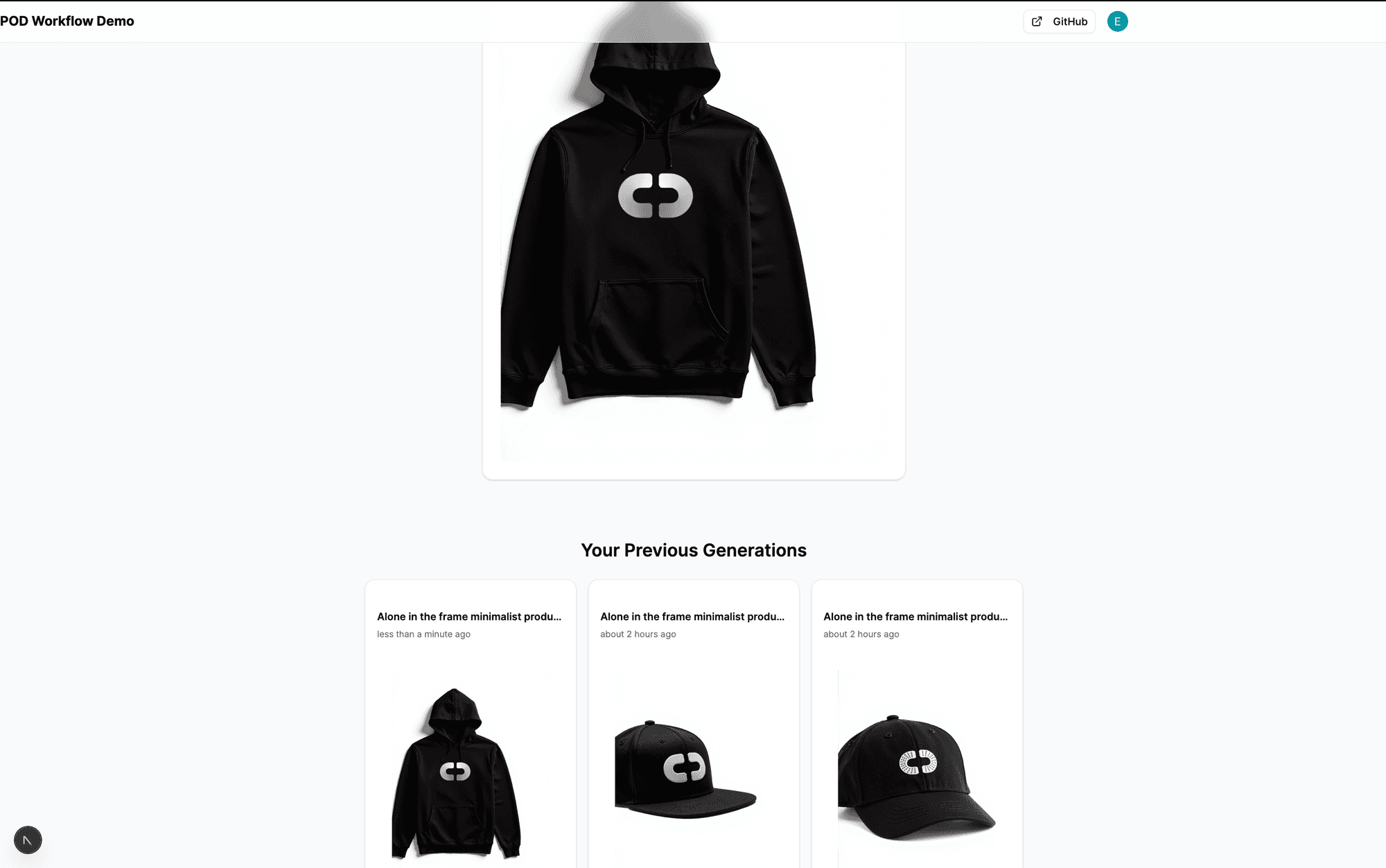
the app can print your logo on different products
Conclusion
Congratulations! You've built a full-stack application that integrates ComfyDeploy for AI image generation, Clerk for authentication, Drizzle for database interactions, and Shadcn/UI for a polished user interface. This provides a solid foundation that you can extend with more features, error handling, and customization. Remember that identifying the correct output node ID from your ComfyUI workflow is key for displaying the generated images.
" height="33.99999999999999px" id="u1jbcvYRv" transform="translate(9 7.5)" width="30px"/></svg>)