
Qwen-Image 2.1 in ComfyUI: Open 7B Model with Transparency
Images: Qwen team, Alibaba.
Qwen-Image 2.1 is the latest image model from Alibaba’s Qwen team, and it runs natively in ComfyUI. It has 7 billion parameters in its image generation component, open weights, native 2K output, and one feature most open models lack: it generates a real alpha channel, so cutouts come out with transparent backgrounds.
License. Qwen-Image 2.1 is released under the Qwen Research License Agreement, which allows non-commercial use only, meaning research or evaluation. For commercial use, you need to request a commercial license from the Qwen team.
What is Qwen-Image 2.1?
According to the ComfyUI team, Qwen-Image 2.1 uses an optimized MMDiT architecture, the same class as Qwen-Image 2.0, which shipped in February 2026. One checkpoint handles both generation and editing, which keeps your model folder simple compared with setups that need a separate editing model.
The announcement is on the ComfyUI blog. Qwen also published Qwen-Image 2.1 Turbo, an accelerated checkpoint of the same 7B model that generates and edits in 8 denoising steps, under the same research license.
Key features
These are the highlights as ComfyUI and the Qwen model card describe them:
- RGBA output. The model produces four channels, alpha included. Sprites, logos, icons, and product cutouts can go straight into a composite without a background-removal or matting step. ComfyUI says no other major open model does this.
- Native 2K generation. Output is 2048x2048 directly, not upscaled.
- Up to 10 reference images. The Text Encode Qwen Image 2.1 node opens image inputs as you fill them, up to 10. Characters, products, background plates, and style references are all read by the text encoder.
- One checkpoint. Generation and editing use the same weights.
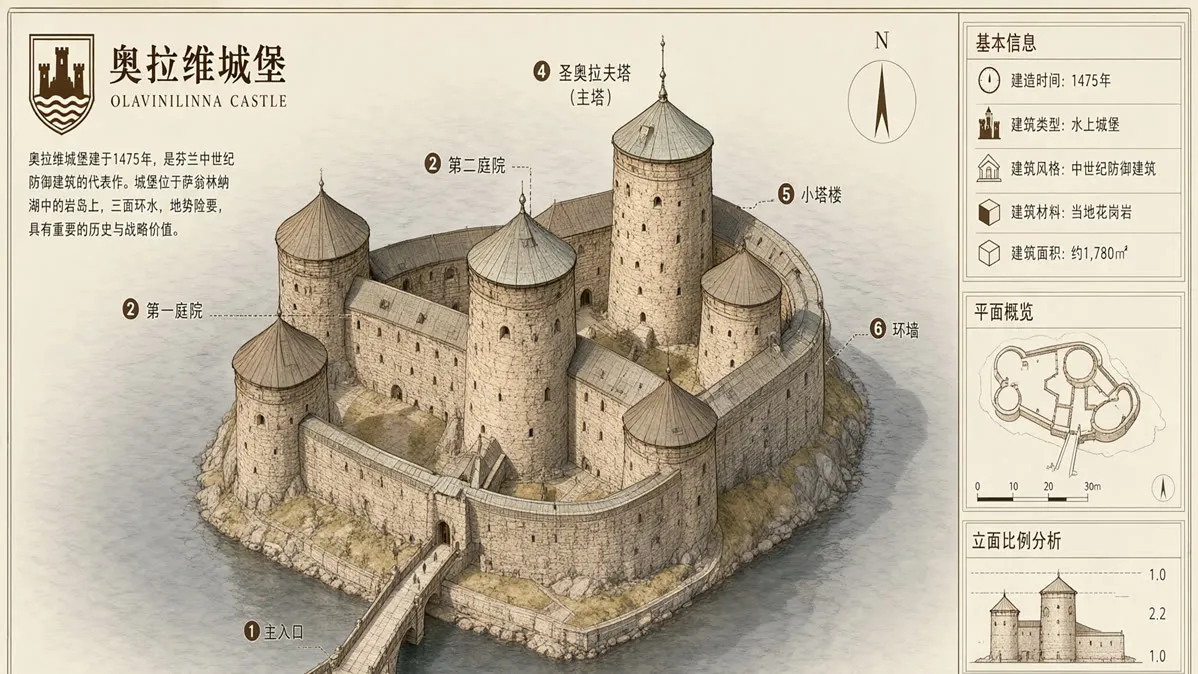
- Improved text rendering. Qwen points to better typography, and its examples include dense labeled layouts like the castle diagram at the top of this post.
Qwen-Image 2.1 ComfyUI workflow
Try this workflow
Qwen-Image 2.1 text to image
- Model
- Qwen-Image 2.1 int8 (6.8 GB), Qwen3-VL 8B text encoder (8.7 GB), VAE (0.6 GB), optional Qwen 3.5 9B prompt enhancer (8.8 GB)
- GPU
- L40S (48 GB) suggested
This card uses the official ComfyUI text-to-image template. You can run it two ways:
- Run on ComfyDeploy opens the ComfyDeploy import screen with this workflow already loaded, so you can set it up on a cloud GPU without installing anything.
- Download JSON gives you the file for local ComfyUI. Update ComfyUI to the latest version, drag the file onto the canvas, and place the model files in
diffusion_models,text_encoders, andvae. The template’s notes link each file.
The template starts at 1024x1024 and 25 steps. For native 2K, set the resolution selector to 1:1 at 4 megapixels. Qwen’s own pipeline uses about 40 steps, so raise the step count if you want to match it. The prompt enhancer is off by default. Turning it on rewrites your prompt with the 9B enhancer model first, which can improve results but makes each run slower.
For cutouts from existing photos, Comfy-Org also publishes an official background removal template for the same model.
If you have used the first-generation Qwen-Image graphs, the structure will look familiar. Our Qwen-Image edit workflow shows a native graph with the same prompt-plus-image pattern, and our earlier Qwen Image Edit guide covers the editing side of the family. More graphs are collected under Qwen-Image workflows. Those pages target the earlier model, so use the 2.1 template for the new loaders and encode node.
Where transparency helps

To get a transparent image, the template notes recommend wrapping your prompt: start with “This is an RGBA format image with transparency.”, then your description, then “The image has an alpha channel and a transparent background.” Save as PNG to keep the alpha channel.
Transparent output changes a few common jobs:
- Game and app assets. Generate a sprite or icon and drop it onto a scene without edge cleanup.
- Product cutouts. Produce an item on a clear background for catalogs or ad layouts.
- Logos and stickers. Keep soft edges and partial transparency that a hard mask would lose.
- Compositing pipelines. Generate foreground elements separately from the background plate, then combine them in code or in another workflow.
We have not tested edge quality on hair, glass, or smoke, so check those cases against your own requirements.
Qwen-Image 2.1 vs FLUX 3 Image Klein
Both are recent open-weight image models with multi-reference editing. Black Forest Labs reports, in internal evaluations relayed by ComfyUI, that its FLUX 3 Image Klein scores above Qwen-Image 2.1 on text-to-image and multi-reference generation. Those evaluations are not independent, so compare both on your own prompts.
From the published specs, Qwen-Image 2.1 offers native alpha output, a 7B size, and up to 10 references. Klein is 5.6B, adds bounding boxes for layout, and ships a base checkpoint for fine-tuning. If transparency is a hard requirement, Qwen-Image 2.1 is the stronger candidate. If you need to pin elements to regions of the canvas, look at Klein.
How to run Qwen-Image 2.1 in the cloud
The template’s int8 files add up to about 16 GB, or about 25 GB with the prompt enhancer turned on. That is why the card suggests an L40S with 48 GB: it can hold every model at once with room left for 2K output and several reference images. A 24 GB card such as an L4 or A10G may work with the enhancer off, but ComfyUI may need to swap models in and out of memory, which slows runs. If you use many references at 2K, an A100 80 GB or H100 adds headroom. This is a suggestion based on file sizes, not a benchmark. Actual memory use depends on resolution, reference count, and precision.
Run it on ComfyDeploy
ComfyDeploy runs ComfyUI workflows on cloud GPUs without local setup. Before you build on it, keep the license in mind: Qwen-Image 2.1 is for non-commercial research or evaluation only, so request a commercial license from the Qwen team before you use it in a commercial product or service.
- Click Run on ComfyDeploy in the card above to import the template.
- Try it in the ComfyUI playground and share the link with teammates or clients.
- Deploy it through the ComfyUI API, so your app sends a prompt and reference images and receives an image with transparency.
That route suits asset pipelines where each request produces one cutout and you want to scale with demand.