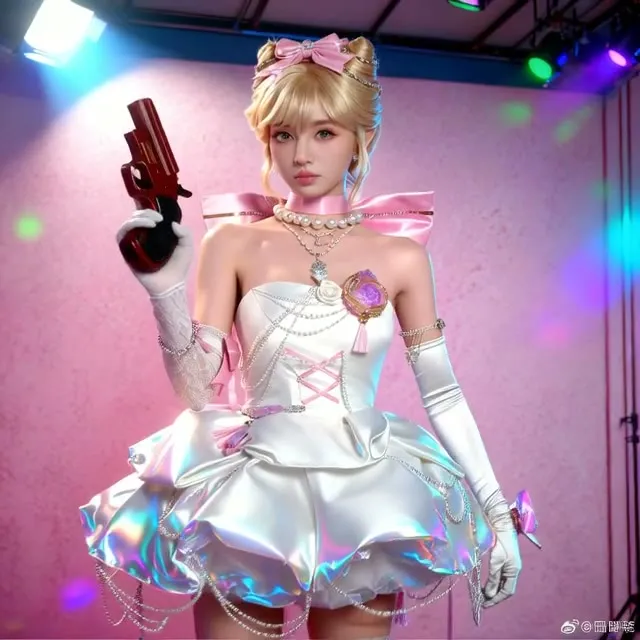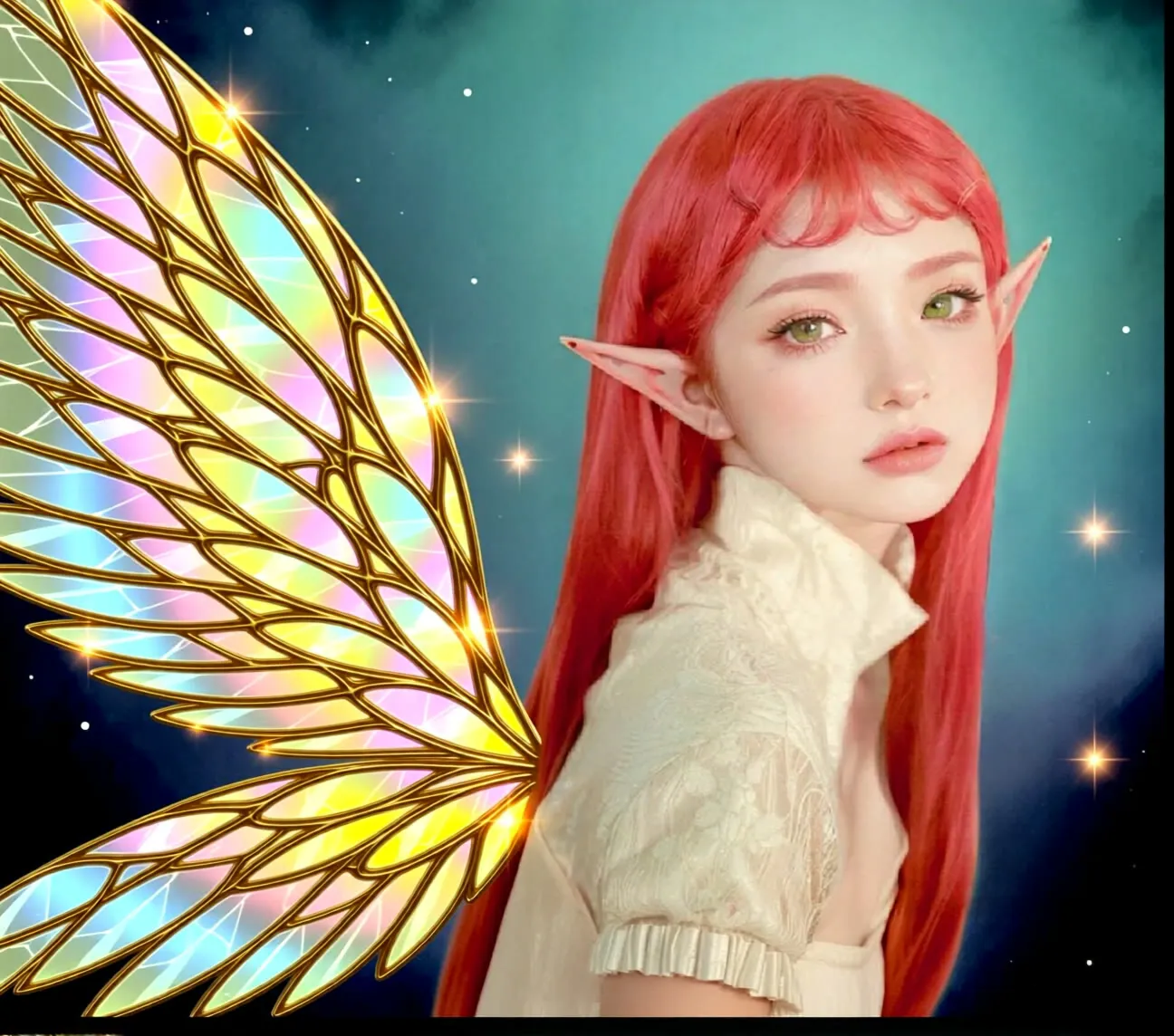
AI Image Edit to Dance Video (Seedance)
Two stages in one workflow: an AI-driven image edit chosen from a list of tasks, then an image-to-video step that animates the result with the motion you describe.
- No GPU (runs on CPU)
- Image editing
- Image to video
- Free template
How it works
The subject image is scaled for the editor with ImageResizeKJv2 and FluxKontextImageScale and a ResolutionSelector turns the chosen input aspect ratio into a size.
Stage one is the edit. PromptManager and SystemPromptTaskGenerator nodes from llm-toolkit build an instruction for the task you picked, and an LLM text generator expands your short keywords into a full edit prompt. The GenerateImage node, configured through ConfigGenerateImageBFL and BFLProviderNode, sends the image and instruction to the API and returns the edited picture.
Stage two is the video. A second prompt chain writes the motion description from your action prompt. ConfigGenerateVideoSeedanceProI2V and the WaveSpeedProviderNode feed GenerateVideo, which animates the edited image at the output aspect ratio you choose.
Tips
- The subject prompt takes one to four comma-separated words for variation tasks, such as hairstyles or eras. Leave it empty for tasks that need no input, like remove text.
- The action prompt only affects movement, so keep scene changes in the subject prompt.
- Preview nodes show the intermediate edit, so you can check it before relying on the video.
- Use vertical 9:16 output for short-form video.
What you can use it for
- Turning a portrait into a short dance clip
- Changing outfit, hairstyle or era before animating
- Relighting or recoloring a photo, then adding motion
- Making social media clips from a single photo
Run it in three steps
Open the template
Click Run on ComfyDeploy. The workflow, its custom nodes and models are set up for you on a cloud machine.
Add your inputs
Provide subject image and edit prompt or variations in the playground or the ComfyUI editor.
Run, share or deploy
Run it on a cloud machine, share it with your team as a playground, or deploy it as an API endpoint.
Frequently asked questions
What GPU does this workflow need?
None. It is set to CPU because the image edit and the video generation both run through external API provider nodes.
Do I need API keys?
Yes. The workflow uses a BFL provider node for the image edit and a WaveSpeed provider node for Seedance Pro video, and its notes mention setting WAVESPEED_API_KEY as a machine secret.
What edits can I choose from?
The prompt notes list tasks such as teleport, move camera, relight, colorize, cartoonify, haircut, change outfit, season shift and age progression.