OmniGen2 Image Editing and Restyling
An OmniGen2 workflow with two modes: restyle a single image from a prompt, or merge a person and a second reference into a new scene.
- L40S
- Image editing
- Free template
How it works
The workflow has two branches that share the same OmniGen2 custom nodes. Both load the model through LoadOmniGen2Model, and two OmniGen2 sampler nodes generate the output.
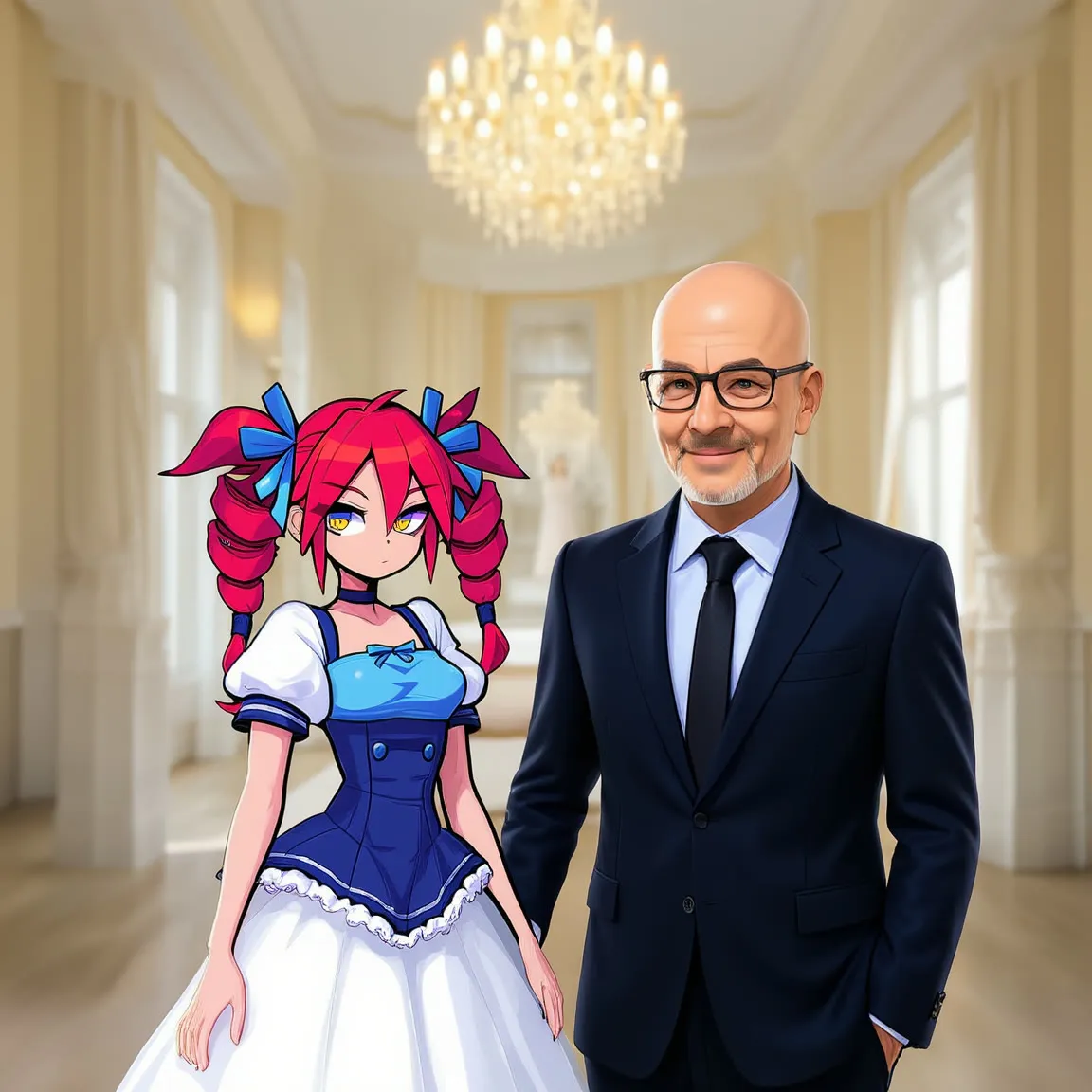
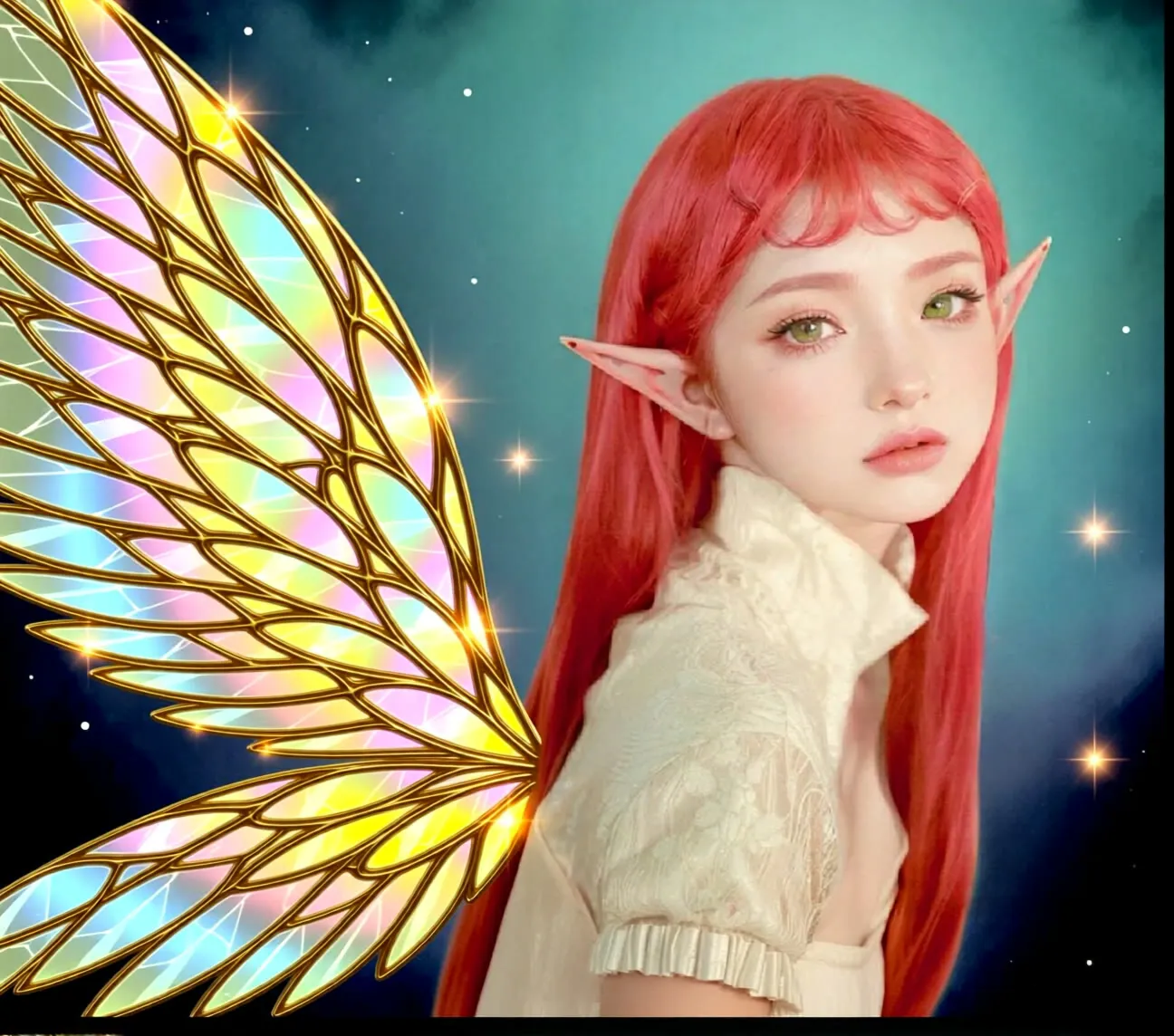
In the single-image branch, one ComfyUIDeployExternalImage is resized by ImageResizeKJv2, using a size from VideoResolutionSelector that follows your aspect ratio and quality choices. The prompt describes the change, for example recreating the same image in a photo-real style.
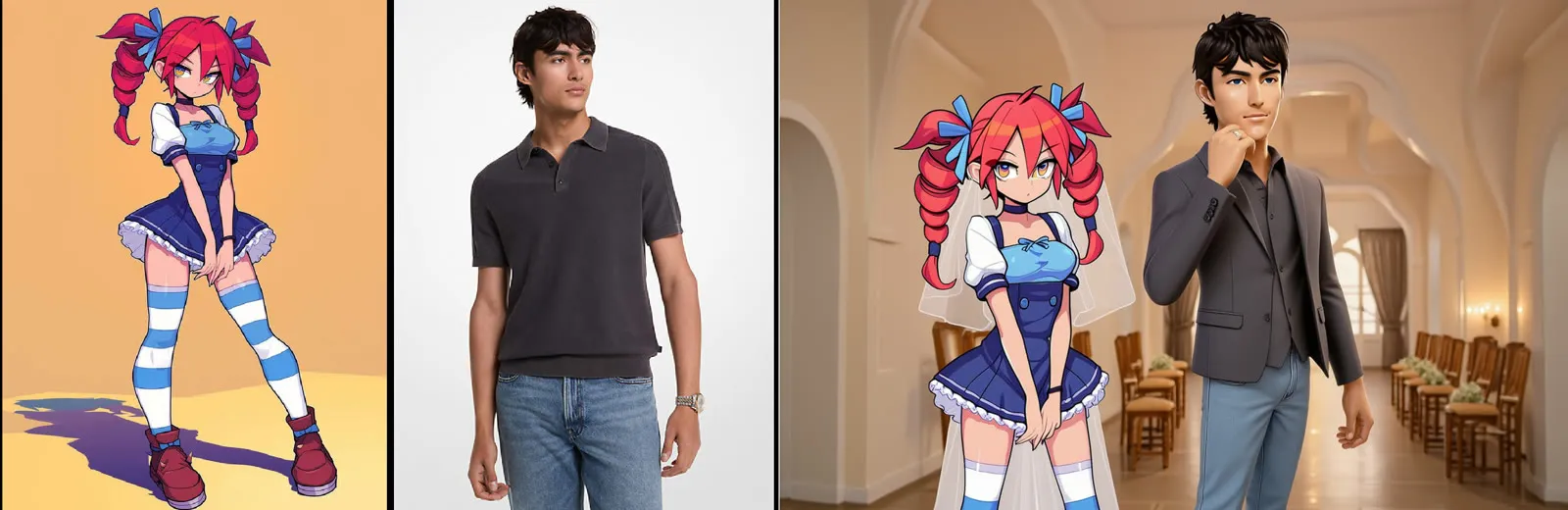
In the double-reference branch, two images are resized, joined with ImageStitch or ImageConcatMulti, and sent with a prompt that talks about the first and second image. The sample prompt builds a wedding figure from a girl in one image and a man in the other. Helper nodes from comfyui-kjnodes and was-ns handle sizing and text.
Tips
- In the two-image mode, say which image supplies what, such as the person from the first image and the clothing from the second.
- Use a clean, front-facing person photo for the best identity match.
- Try LQ for quick tests, then rerun the best prompt in HQ.
- Choose the aspect ratio that matches your source to limit stretching.
Run it as an API
You can deploy this workflow on ComfyDeploy as a hosted API endpoint. The inputs listed above become the request fields, so your own app can submit them and receive the finished result without running ComfyUI yourself. The same workflow can also be run and shared from the ComfyDeploy playground in your browser.
What you can use it for
- Turning a photo into anime or the reverse
- Placing two people in one composed scene
- Changing outfit or setting using a second reference
- Quick style tests before using a heavier model
Run it in three steps
Open the template
Click Run on ComfyDeploy. The workflow, its custom nodes and models are set up for you on a cloud machine.
Add your inputs
Provide single input image and single-image prompt in the playground or the ComfyUI editor.
Run, share or deploy
Run it on an L40S, share it with your team as a playground, or deploy it as an API endpoint.
Frequently asked questions
What GPU does this OmniGen2 workflow need?
It is configured for an L40S on ComfyDeploy.
Can I use two images?
Yes. The double-reference branch takes two images and a prompt that refers to them as the first and second image.
What does the quality setting do?
The HQ, MQ and LQ options trade detail for speed. MQ is the default in the workflow.