
Photo Restoration (Nano Banana)
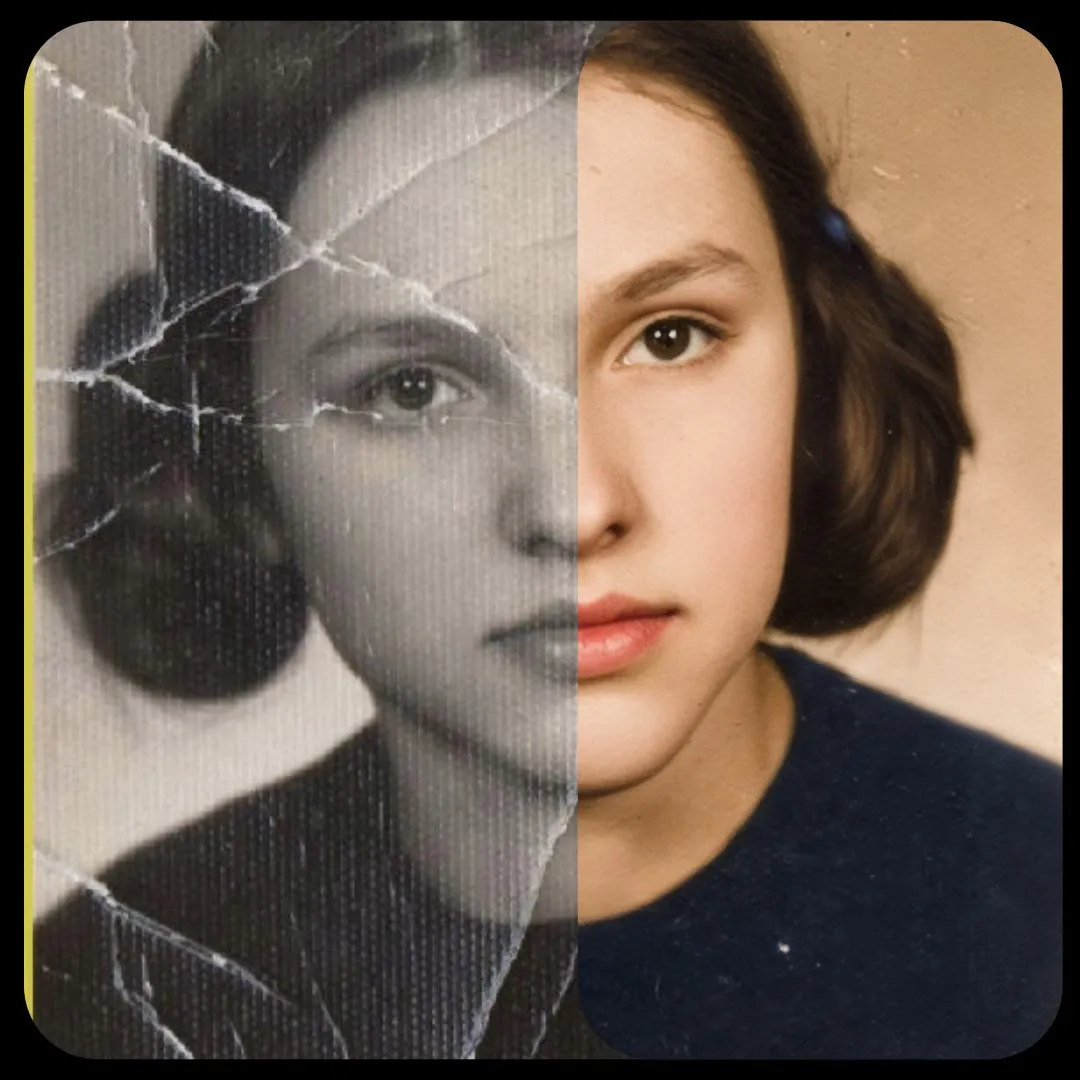
Upload an old or damaged photo and the workflow restores it, adds color and enhances detail using Gemini 2.5 Flash Image. Useful for family archives and photo services.
- T4
- Restoration
- Image editing
- Free template
How it works
This is a Nano Banana workflow built for restoration. It does not run a local upscaler or face restorer. Instead, Google’s Gemini 2.5 Flash Image model (google/gemini-2.5-flash-image-preview) is called through OpenRouter, and the model redraws the photo as a restored, colorized version.
The scan you upload is loaded with LoadImage and fitted to the selected aspect ratio by a ResizeAndPad node. The BananaTaskGenerator and LLMPromptManager nodes from llm-toolkit build the instructions, and anything you type in the extra prompt field is added to them. A PreviewAny node shows the final prompt. GenerateImage sends the image and prompt to the model with your OpenRouter key and SaveImage stores the output.
Because the heavy work happens in the external model, the recommended GPU is a small T4.
Tips
- Scan at a reasonable resolution and crop out the scanner bed before uploading.
- Use the extra prompt to guide the result, for example the decade of the photo or the clothing colors you know are correct.
- Compare faces with the original. Generative restoration can alter small details, so run a few seeds and keep the closest one.
- Choose the aspect ratio closest to the original so less padding is added.
Run it as an API
Deploy the workflow on ComfyDeploy to restore photos from a web form or batch script.
What you can use it for
- Restoring scanned family photos
- Colorizing black-and-white pictures
- Cleaning up faded or scratched prints
- Offering photo restoration as a service through an API
Run it in three steps
Open the template
Click Run on ComfyDeploy. The workflow, its custom nodes and models are set up for you on a cloud machine.
Add your inputs
Provide old photo scan and optional extra prompt in the playground or the ComfyUI editor.
Run, share or deploy
Run it on a T4, share it with your team as a playground, or deploy it as an API endpoint.
Frequently asked questions
What GPU does the Photo Restoration workflow need?
The recommended GPU is a T4. The image itself is generated by Gemini 2.5 Flash Image through OpenRouter, so the GPU only handles light resizing and padding.
Do I need my own API key?
Yes. The workflow has an external_api_key text input for your OpenRouter key, which the GenerateImage node uses to call the Gemini model. Without a key, the call cannot be made.
Does it keep the original composition?
The scan is padded, not cropped, to your chosen aspect ratio, and the model is prompted to restore the picture. Results come from a generative model, so check faces and fine details against the original.
Related workflows
All Nano Banana workflowsVirtual Try-On with Nano Banana
No GPU needed
Through the Ages Photo Grid (Nano Banana)
No GPU needed