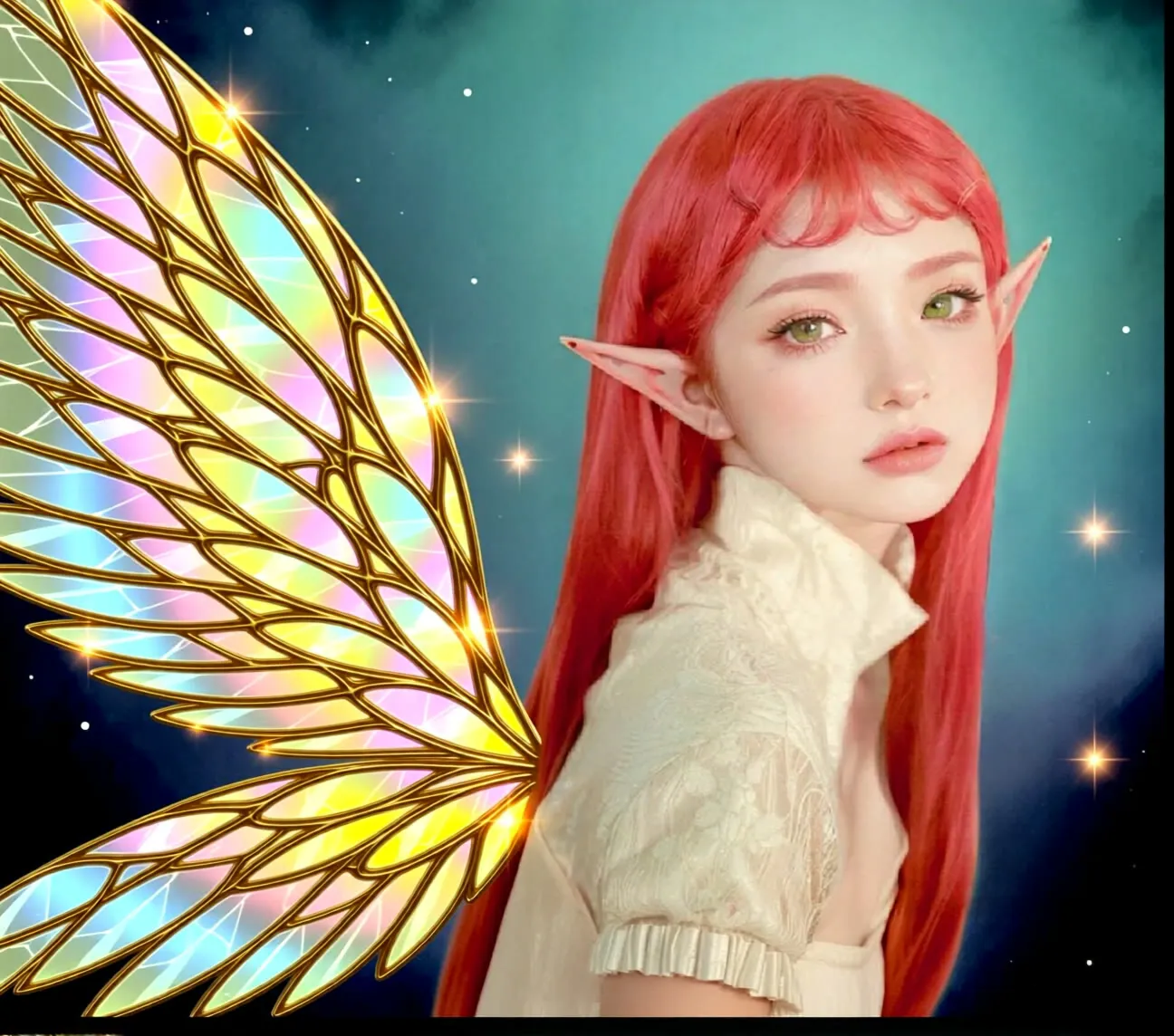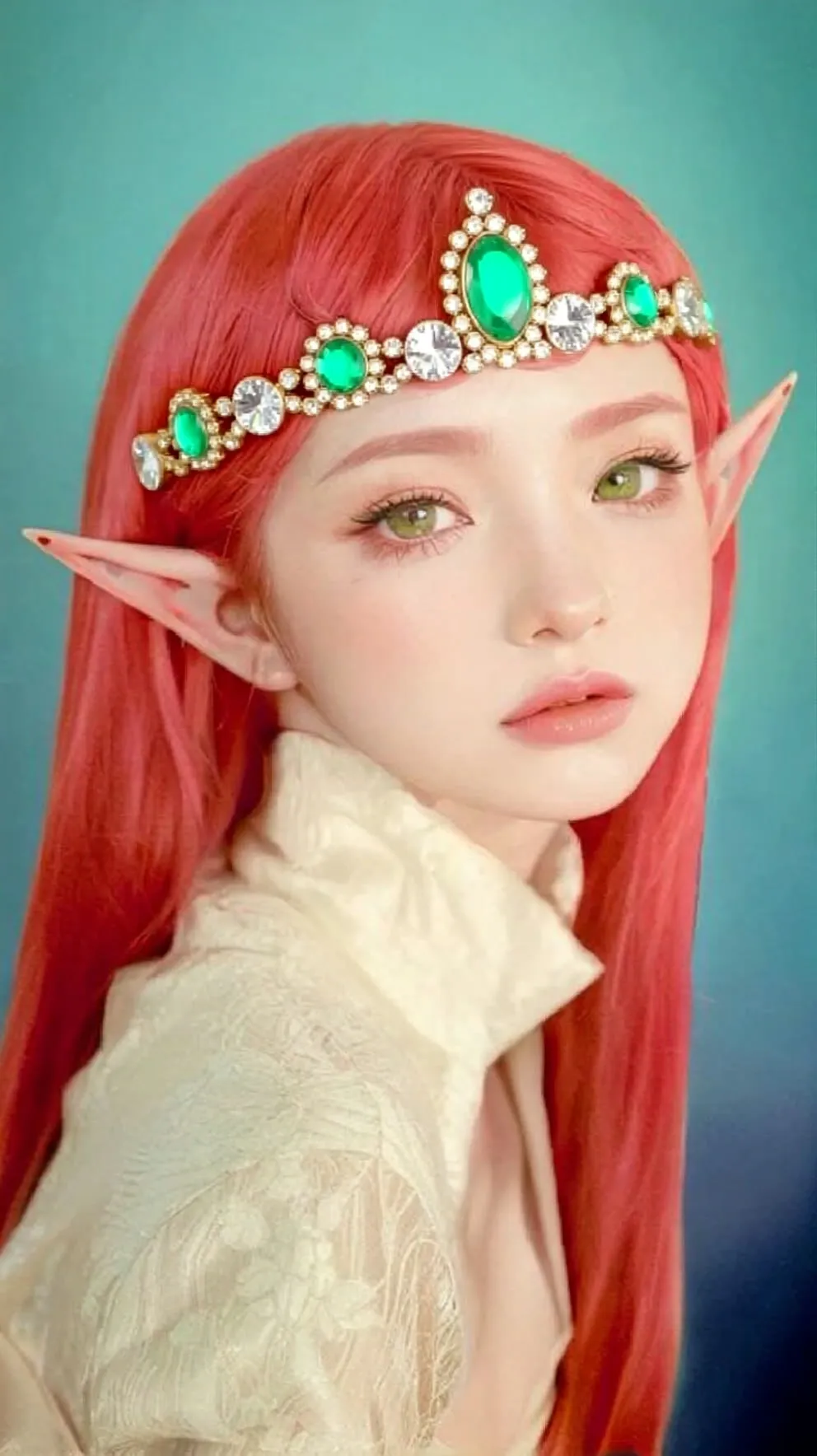
3D Product Ad Images with Qwen-Image-Edit
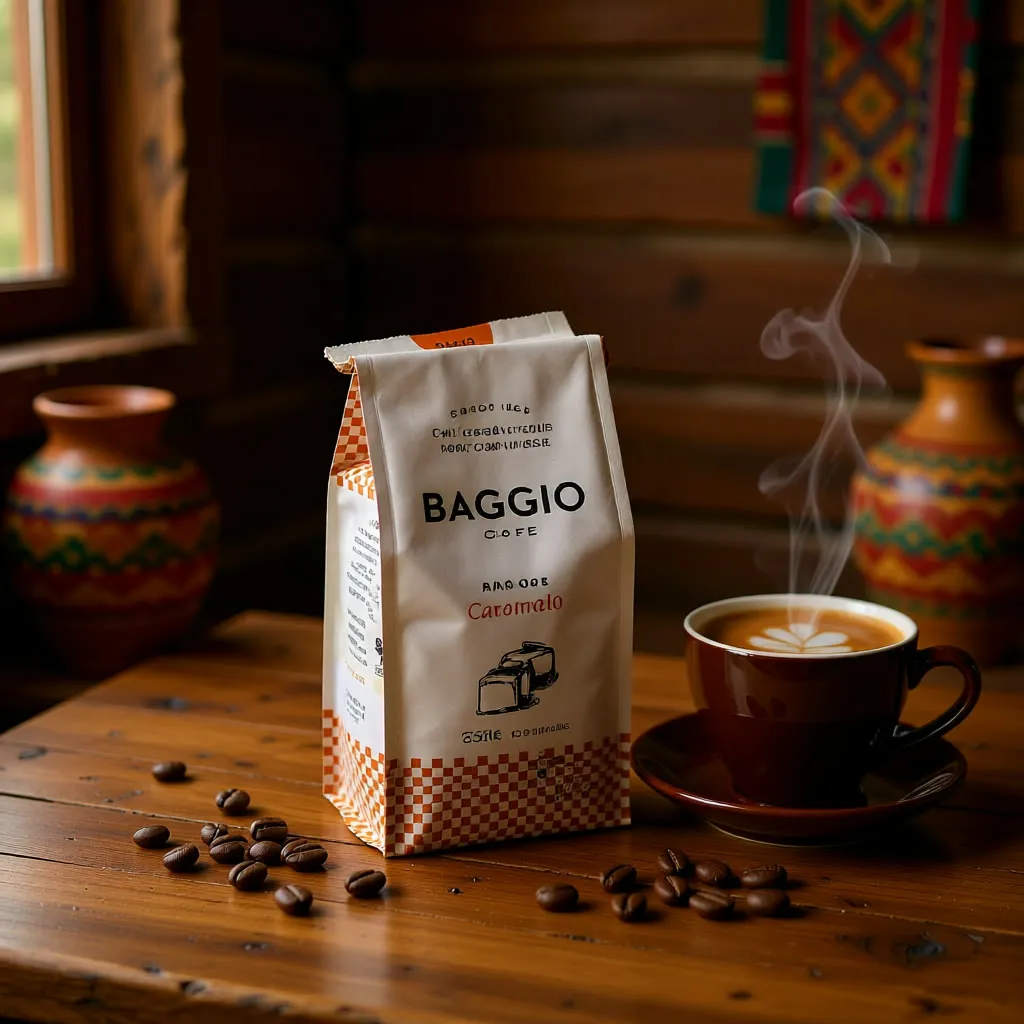
Pass in a 3D object render and a short prompt, and Qwen-Image-Edit places the product into a finished ad-style image. Built for product marketers and designers who need quick visual concepts.
- L40S
- Image editing
- Text to image
- Free template
How it works
The workflow loads qwen_image_edit_fp8_e4m3fn.safetensors with the qwen_2.5_vl_7b_fp8_scaled text encoder and the Qwen image VAE. Two LoRAs are applied on top: Qwen-Image-Lightning-8steps-V1.1 for faster sampling and flymy_realism for a more photographic look.
Your reference image goes through a Load3D / image path, gets resized with ImageScaleToTotalPixels, and is encoded into the latent. The prompt is passed to TextEncodeQwenImageEdit together with the image. An optional LLM step (via the llm-toolkit nodes and an OpenAI provider node) can rewrite your short prompt using one of many task presets, such as Product, Relight, Move Camera, Cartoonify or SwapBackground. Resolution comes from a ResolutionSelector with HQ, MQ and LQ sizes in horizontal, vertical, square and cinematic formats.
A ModelSamplingAuraFlow node and a standard KSampler do the denoising, then VAEDecode and SaveImage produce the result.
Tips
- Choose the
Producttask for ad shots, and tryRelightorSwapBackgroundwhen you only want to change the scene around the object. - The enhance-prompt toggle is a manual-off / auto-on switch. Turn it off if you have no OpenAI key on the machine and write a full prompt yourself.
- Use the negative prompt field to add keywords when an unwanted element keeps showing up.
- Set batch size above 1 to get several variations from one seed.
Run it as an API
Because the inputs are ComfyDeploy external nodes, you can deploy this workflow as an API endpoint and call it from a store backend or design tool.
What you can use it for
- Product ad concepts from a 3D render
- Plushie or felt-toy style transformations of a character
- Background and scene swaps for product shots
- Quick style and relight variations of one asset
Run it in three steps
Open the template
Click Run on ComfyDeploy. The workflow, its custom nodes and models are set up for you on a cloud machine.
Add your inputs
Provide reference image (3d object or product render) and text prompt in the playground or the ComfyUI editor.
Run, share or deploy
Run it on an L40S, share it with your team as a playground, or deploy it as an API endpoint.
Frequently asked questions
What GPU does this Qwen-Image-Edit workflow need?
It is set up to run on an L40S GPU on ComfyDeploy. It loads qwen_image_edit_fp8_e4m3fn, which is the fp8 version of the model.
Can I use an LLM to write the prompt?
Yes. A prompt-enhance switch routes your text through an OpenAI-based prompt generator, and you can turn it off to write the prompt yourself. The OpenAI step needs an API key set as a machine secret.
How do I run this workflow as an API?
Deploy it on ComfyDeploy and the exposed inputs (image, prompt, task, seed, batch size) become API parameters. You then call the endpoint with your own image and text.