HunyuanImage-2.1 Text-to-Image
A minimal HunyuanImage-2.1 text-to-image workflow with a prompt box and width and height controls. Good for people who want sharp, text-aware images at large native sizes.
- L40S
- Text to image
- Free template
How it works
The workflow loads hunyuanimage2.1_fp8_e4m3fn.safetensors with a UNETLoader and pairs it with a DualCLIPLoader that uses qwen_2.5_vl_7b_fp8_scaled.safetensors and byt5_small_glyphxl_fp16.safetensors. The Qwen 2.5 VL encoder reads your prompt, and the ByT5 glyph encoder helps the model render quoted text correctly.
Your prompt goes in through a text input, and a second CLIPTextEncode node holds the negative prompt. An EmptyHunyuanImageLatent node creates the canvas from the width and height inputs. A single KSampler denoises the latent, and a VAELoader with hunyuan_image_2.1_vae_fp16.safetensors feeds the VAEDecode node that turns it into the final saved image.
No custom node packages are needed, so the graph is only 12 nodes and easy to read or extend.
Tips
- Use the size pairs from the notes in the graph: 2560x1536 (16:9), 2304x1792 (4:3), 2048x2048 (1:1), 1792x2304 (3:4) and 1536x2560 (9:16).
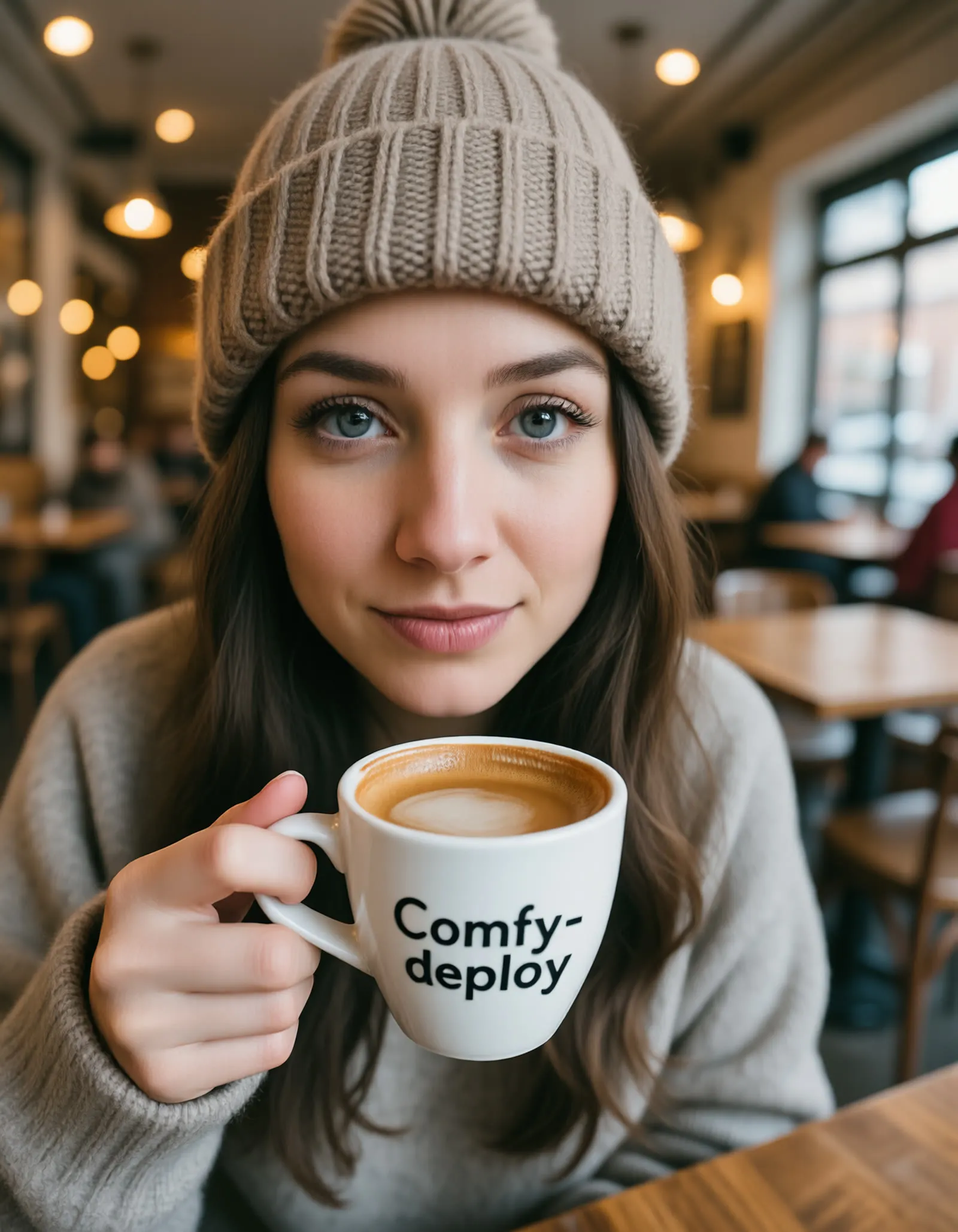
- Put any text you want in the image in quotation marks inside the prompt, for example the words on a cup or sign.
- The negative prompt already lists common anatomy faults such as extra digits and limbs. Add your own terms there if a certain artifact keeps appearing.
- Change the seed in the KSampler to explore variations of the same prompt.
Run it as an API
Because the prompt, width and height are exposed as inputs, you can deploy this on ComfyDeploy and call it from your own app.
What you can use it for
- Posters and signs where the image must contain readable text
- Portrait and lifestyle photography concepts
- Large 2K-class images in several aspect ratios
- Testing prompts against HunyuanImage-2.1 before building a bigger pipeline
Run it in three steps
Open the template
Click Run on ComfyDeploy. The workflow, its custom nodes and models are set up for you on a cloud machine.
Add your inputs
Provide positive text prompt and image width in the playground or the ComfyUI editor.
Run, share or deploy
Run it on an L40S, share it with your team as a playground, or deploy it as an API endpoint.
Frequently asked questions
What GPU does this HunyuanImage-2.1 workflow need?
It is set up to run on an L40S on ComfyDeploy. The model is loaded in fp8, which keeps memory use manageable.
What image sizes should I use?
The workflow notes list pairings such as 2560x1536 for 16:9, 2048x2048 for 1:1 and 1536x2560 for 9:16. Stay close to those sizes for best results.
How do I run this workflow as an API?
Deploy it on ComfyDeploy and call the endpoint with positive_prompt, width and height as inputs. The generated image comes back as the output.