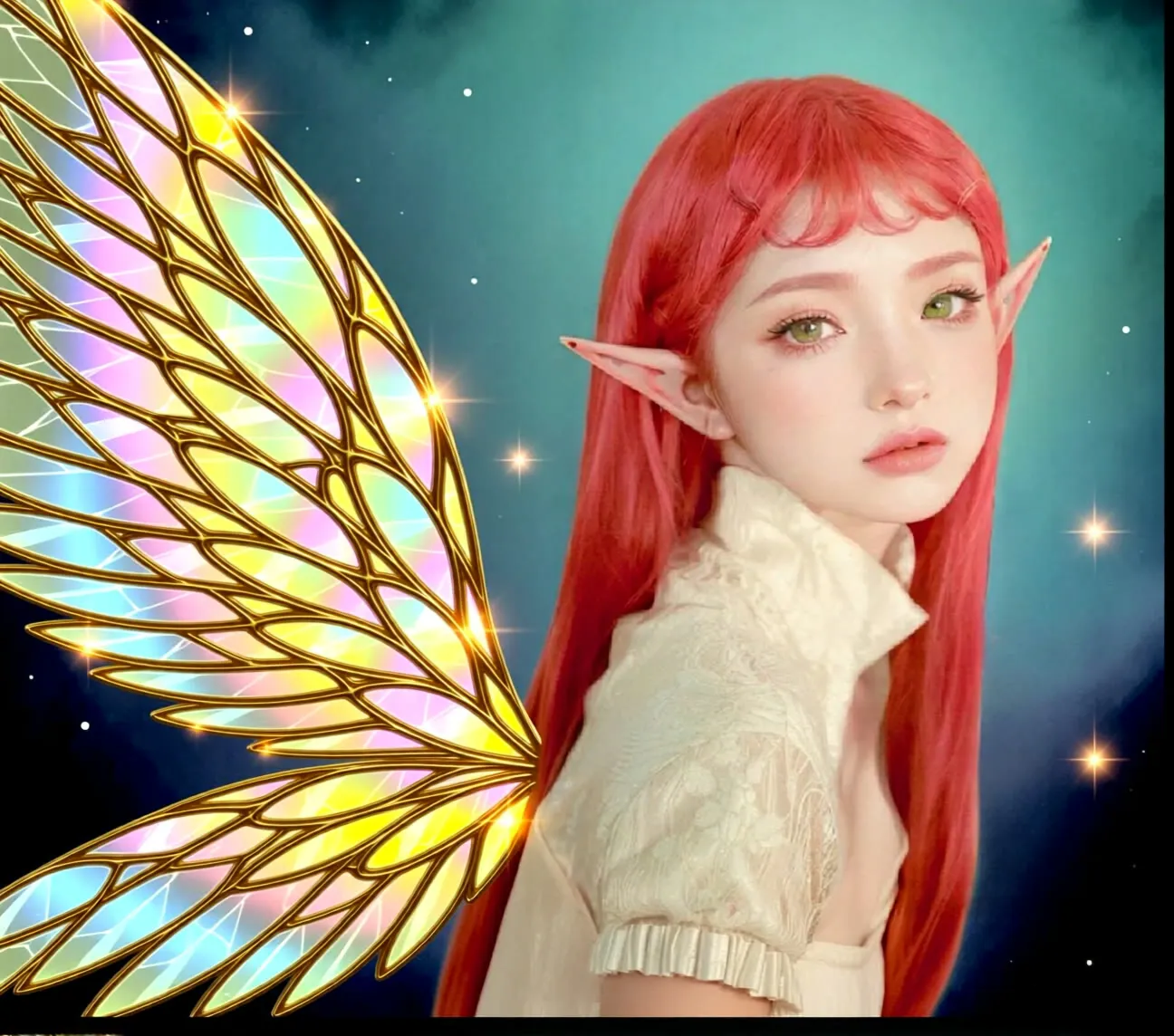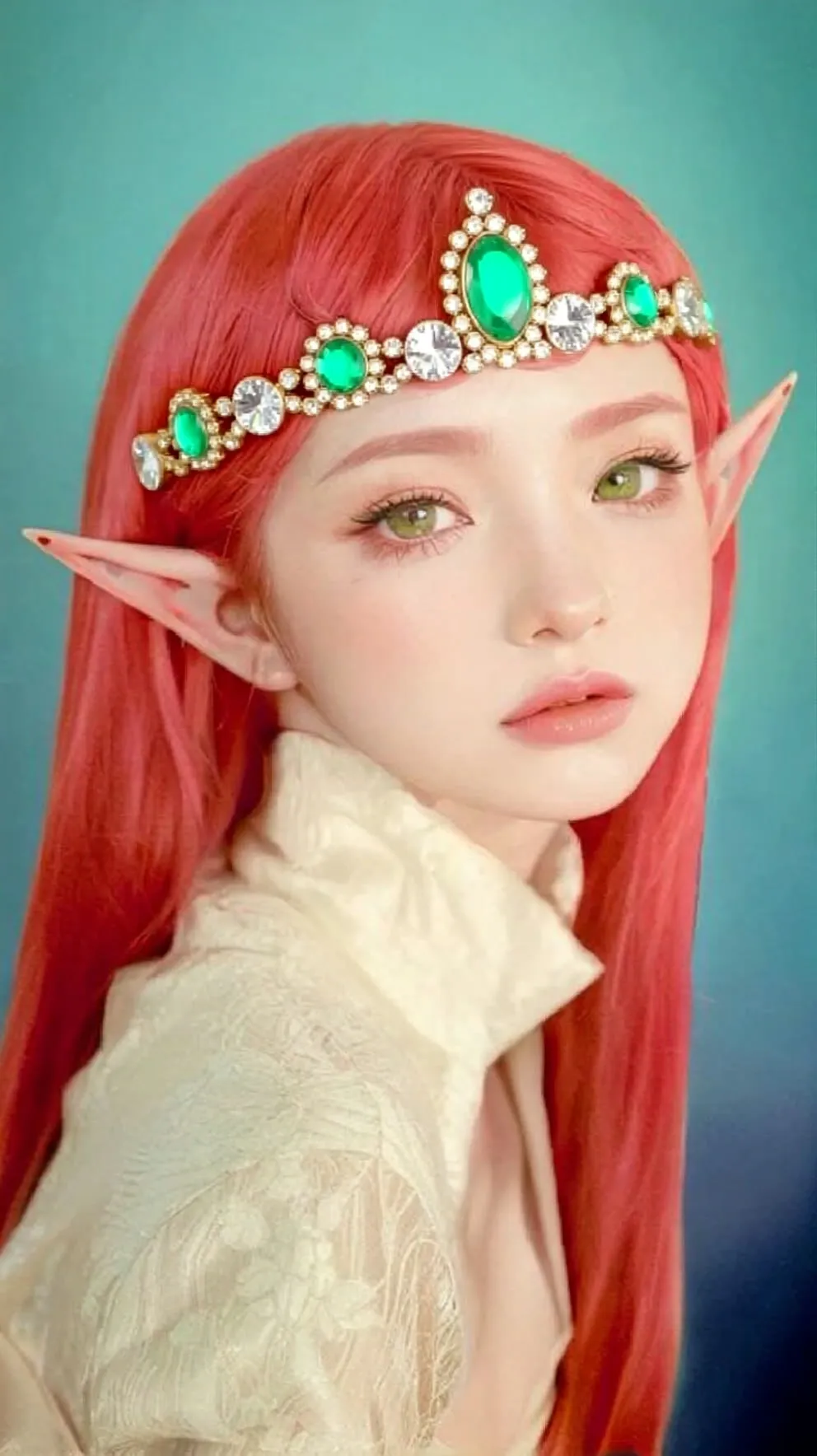
Branding Product Shot with Seedream 4 (Dual Input)
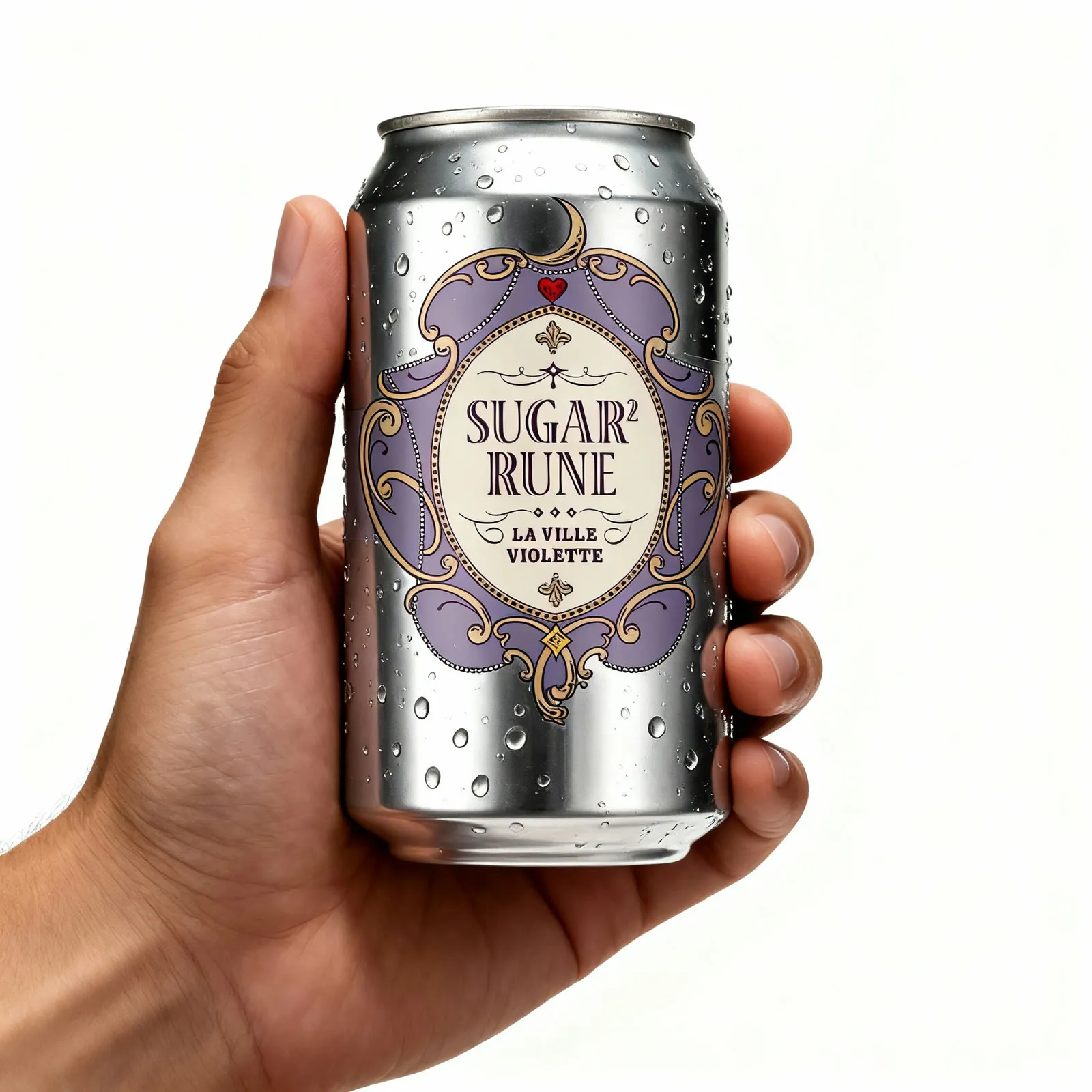
Upload a product photo and a logo, describe the placement, and Seedream 4 produces a branded product shot. Aimed at brands and e-commerce teams mocking up packaging and merch.
- Image editing
- Free template
How it works
The workflow takes two images through ComfyUIDeployExternalImage nodes, resizes and pads each one with ResizeAndPadImage, and merges them with ImageBatch. A ResolutionSelector sets the output size.
Generation is handled by the GenerateImage node with a ConfigGenerateImageSeedream config set to seedream_v4, so the heavy work happens on Seedream rather than on your own machine. An APIProviderSelectorNode picks the provider.
The prompt side uses the llm-toolkit package: an LLMPromptManager and a task generator turn your short instruction into a full prompt based on a task list. The list includes Text/Logo Add or Replace (Perspective-Aware), Prop Add/Swap, Outfit Try-On, Accessory Swap and Single-Hand Holding/Product Placement Consistency, among others. The default is 5 Prop Add/Swap (Placement-Aware).
Tips
- For logos, pick the
6 Text/Logo Add or Replace (Perspective-Aware)task so the logo follows the surface instead of floating on top. - Mention the material in your prompt, for example that the logo should wrap with the fabric and look like part of the same material.
- Keep the logo image clean and on a plain background so it is easy to isolate.
- If the LLM step is unavailable, write the whole instruction manually, such as which image to take the product from and which to take the logo from.
What you can use it for
- Wrap a logo around a can or bottle
- Print a logo on apparel so it follows the fabric
- Add a prop or hand holding the product
- Outfit or accessory swaps on a model photo
Run it in three steps
Open the template
Click Run on ComfyDeploy. The workflow, its custom nodes and models are set up for you on a cloud machine.
Add your inputs
Provide product image and logo or second reference image in the playground or the ComfyUI editor.
Run, share or deploy
Run it on a cloud machine, share it with your team as a playground, or deploy it as an API endpoint.
Frequently asked questions
What GPU does this Seedream workflow need?
None. The GPU is listed as CPU because generation is done by the Seedream v4 model through an API node, not on a local GPU.
Do I need an API key?
The prompt helper uses an OpenAI-based LLM node, which needs an OPENAI_API_KEY secret on the machine. Without it, write the full prompt yourself and remove the system prompt.
How do I run this as an API?
Deploy it on ComfyDeploy and call the endpoint with the two images, task, prompt and seed. The playground inputs map directly to API fields.