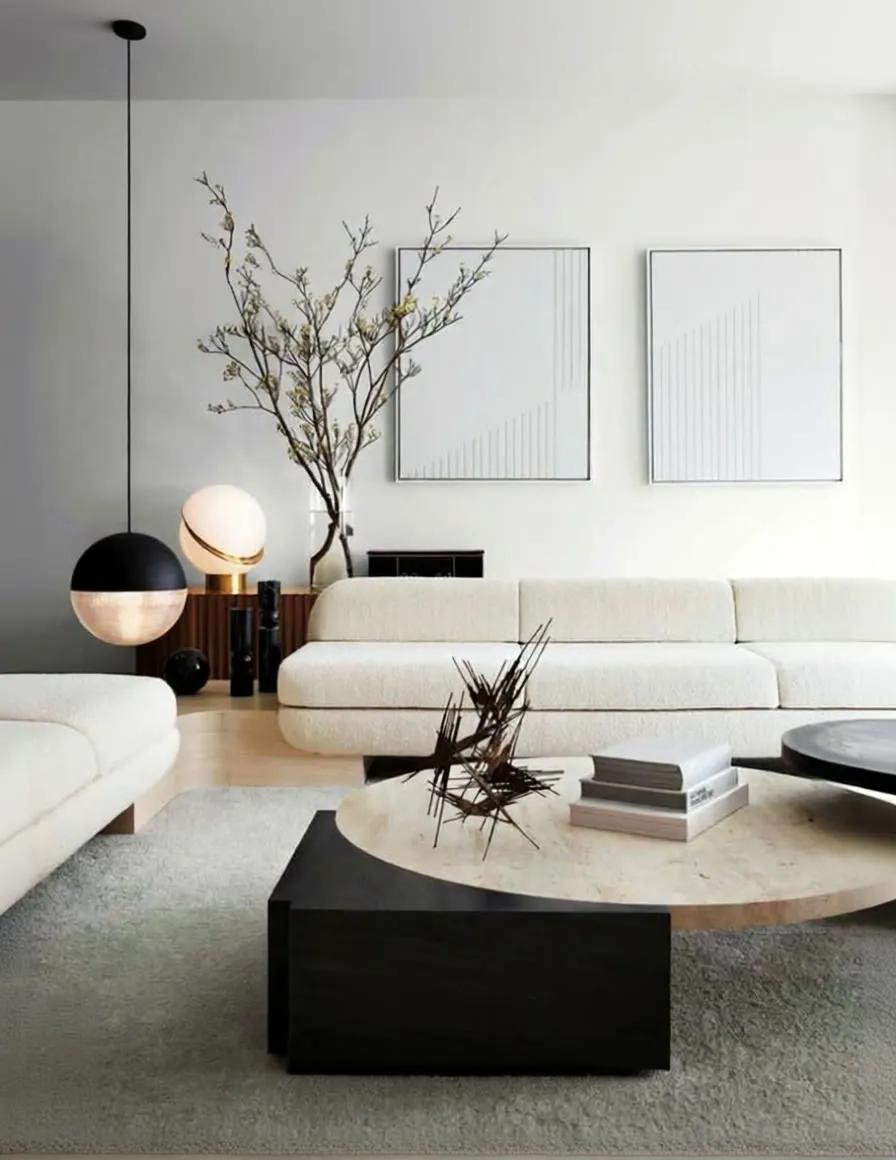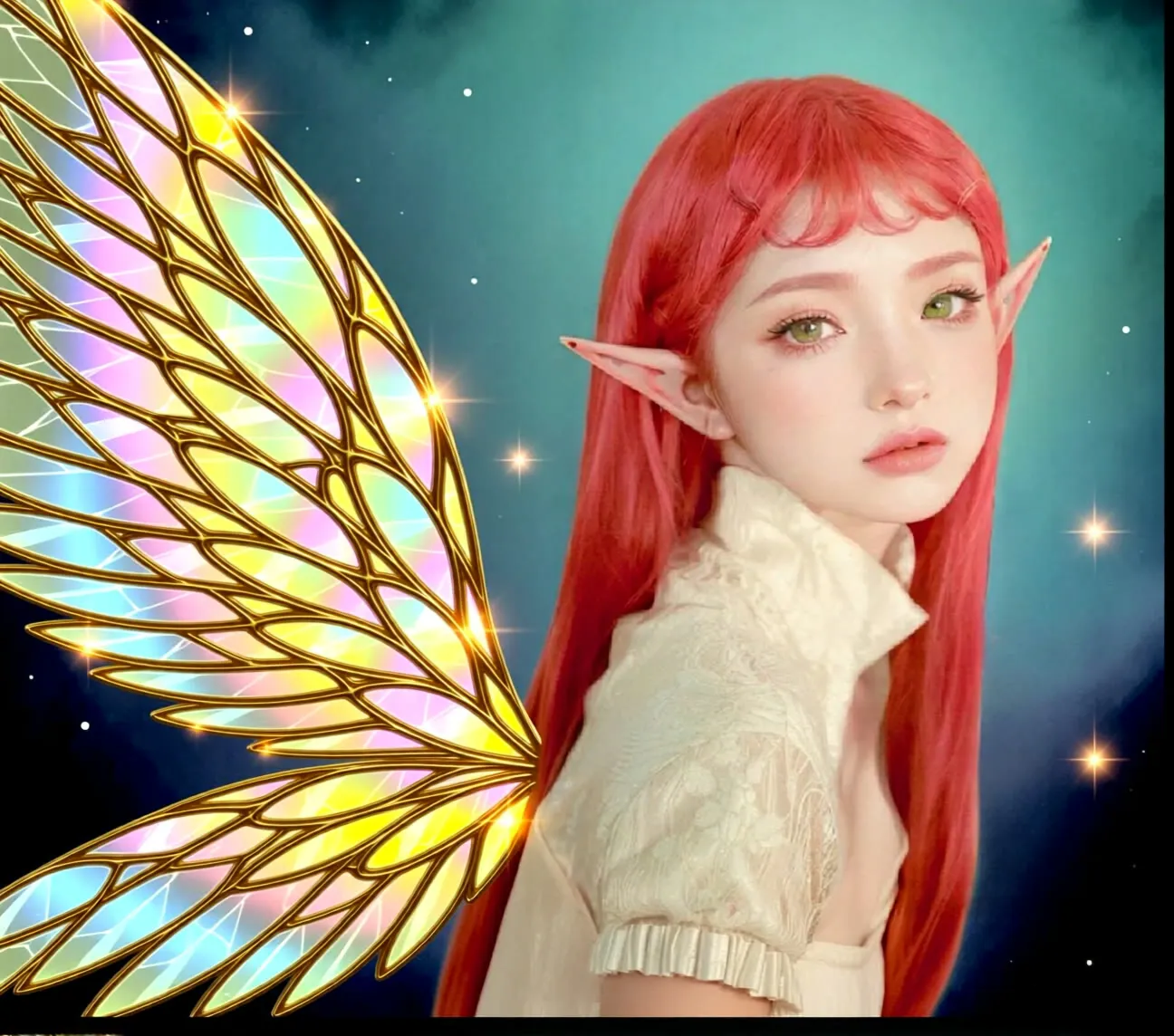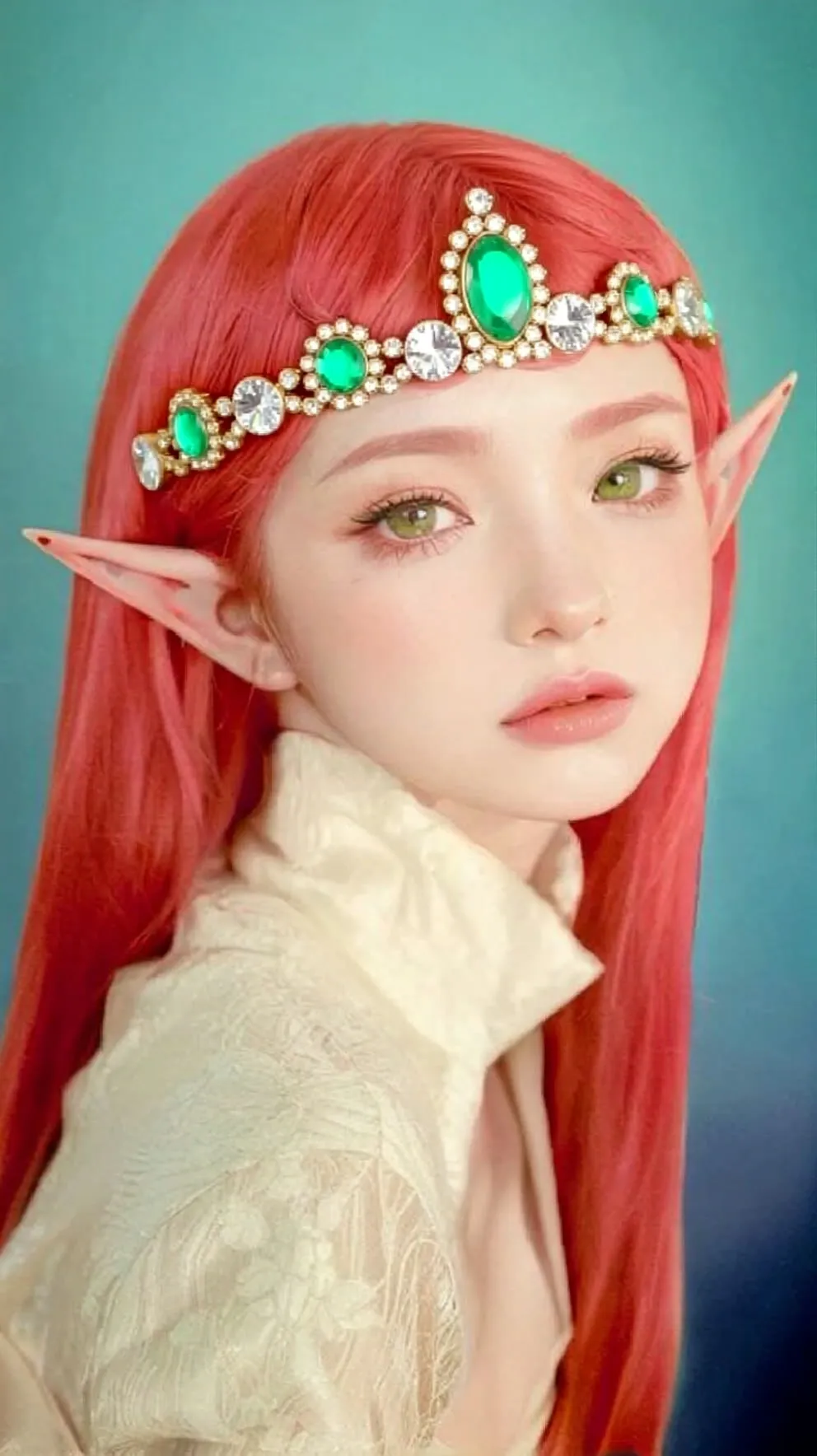
Dual Qwen-Edit (Two Reference Images)
Give the workflow two images and an instruction, and Qwen-Image-Edit uses both to guide the edit. Useful for combining characters, style transfer and placing subjects together.
- L40S
- Image editing
- Free template
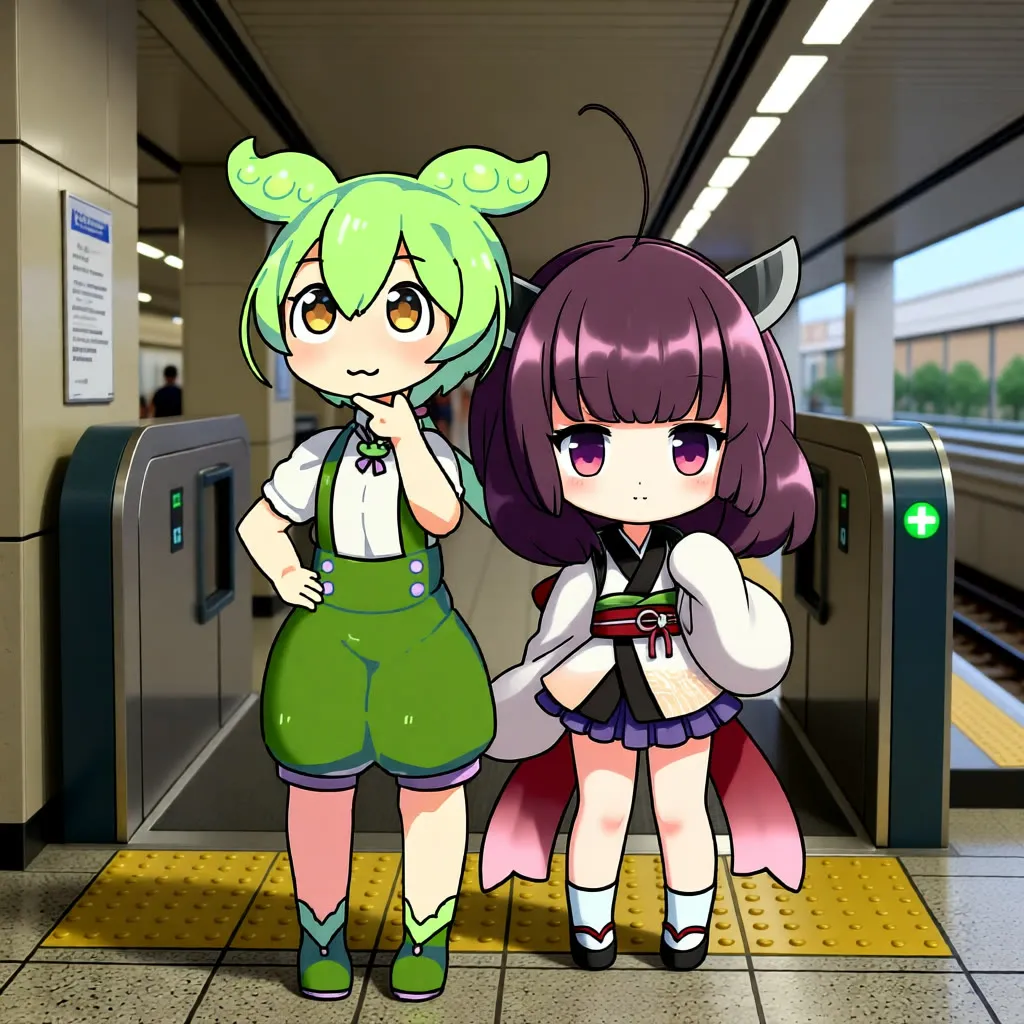
How it works
Dual Qwen-Edit is built around the same stack as the single-image workflow: qwen_image_edit_fp8_e4m3fn.safetensors, the qwen_2.5_vl_7b_fp8_scaled text encoder and qwen_image_vae.safetensors. The difference is the speed LoRA, Qwen-Image-Lightning-8steps-V1.1-bf16 (eight steps, versus four in the Fast variant), and the second image input.
You provide two images, input_image1 and input_image2, plus an aspect ratio of Horizontal, Vertical, Squarish or Cinematic. The task dropdown holds a long list of presets, including Integrate Couple, StyleTransfer, Cast Actress, Cast Actor, Relocate Character, Relight and Turnaround Sheet, many with a 4-variations option. The default is Integrate Couple. When enhancing is on, an LLM turns the task and your text into the final edit prompt, and SwitchAny nodes route either that or your manual prompt to the model.
The ALT_LATENT switch changes how the second image is fed to the latent, per its in-graph note.
Tips
- Pick the task that matches what you want, then use the prompt for details like placement or wardrobe.
- If the second concept is ignored, turn ALT_LATENT on. If characters are duplicated, turn it off.
- Image 1 is generally the subject being edited and image 2 the reference.
- Use the negative prompt note for common artifacts: duplicates, deformed, short legs, big head.
What you can use it for
- Placing two characters in the same scene
- Restyling character 1 using image 2 as the style reference
- Combining features of two characters into a new design
- Transferring outfits or accessories between characters
Run it in three steps
Open the template
Click Run on ComfyDeploy. The workflow, its custom nodes and models are set up for you on a cloud machine.
Add your inputs
Provide reference image 1 and reference image 2 in the playground or the ComfyUI editor.
Run, share or deploy
Run it on an L40S, share it with your team as a playground, or deploy it as an API endpoint.
Frequently asked questions
What GPU does Dual Qwen-Edit need?
The recommended GPU is an L40S. It runs qwen_image_edit_fp8_e4m3fn with the 8-step Qwen-Image Lightning LoRA.
What are the ALT_LATENT and prompt enhance options?
ALT_LATENT is a boolean in the graph. Its note says to turn it on if the second concept has problems and off if you get duplicates. The enhance toggle lets an LLM expand your prompt using the selected task.
Does it work every time?
The template description calls it experimental and says it works well in some use cases. Try several seeds and adjust the prompt.