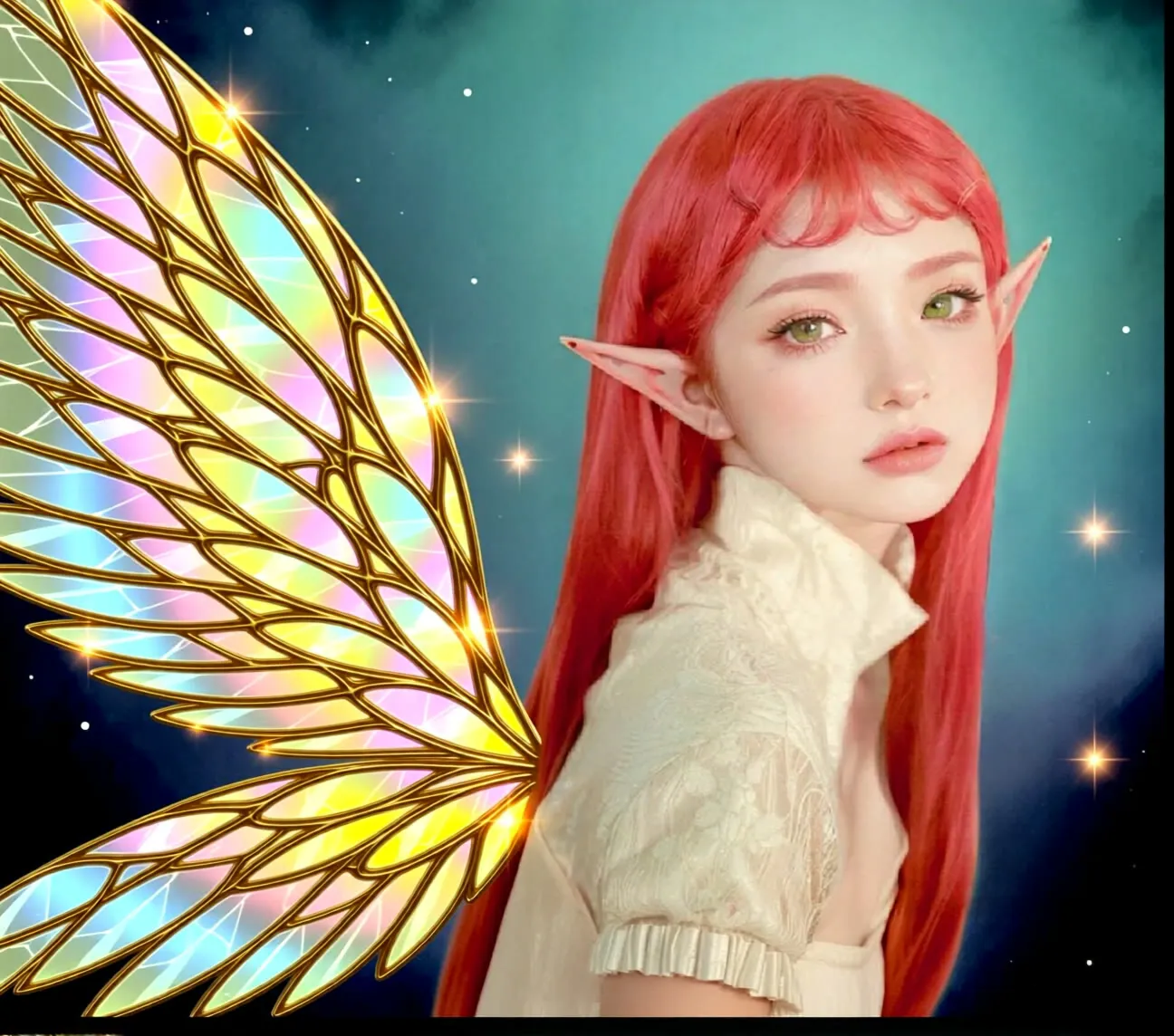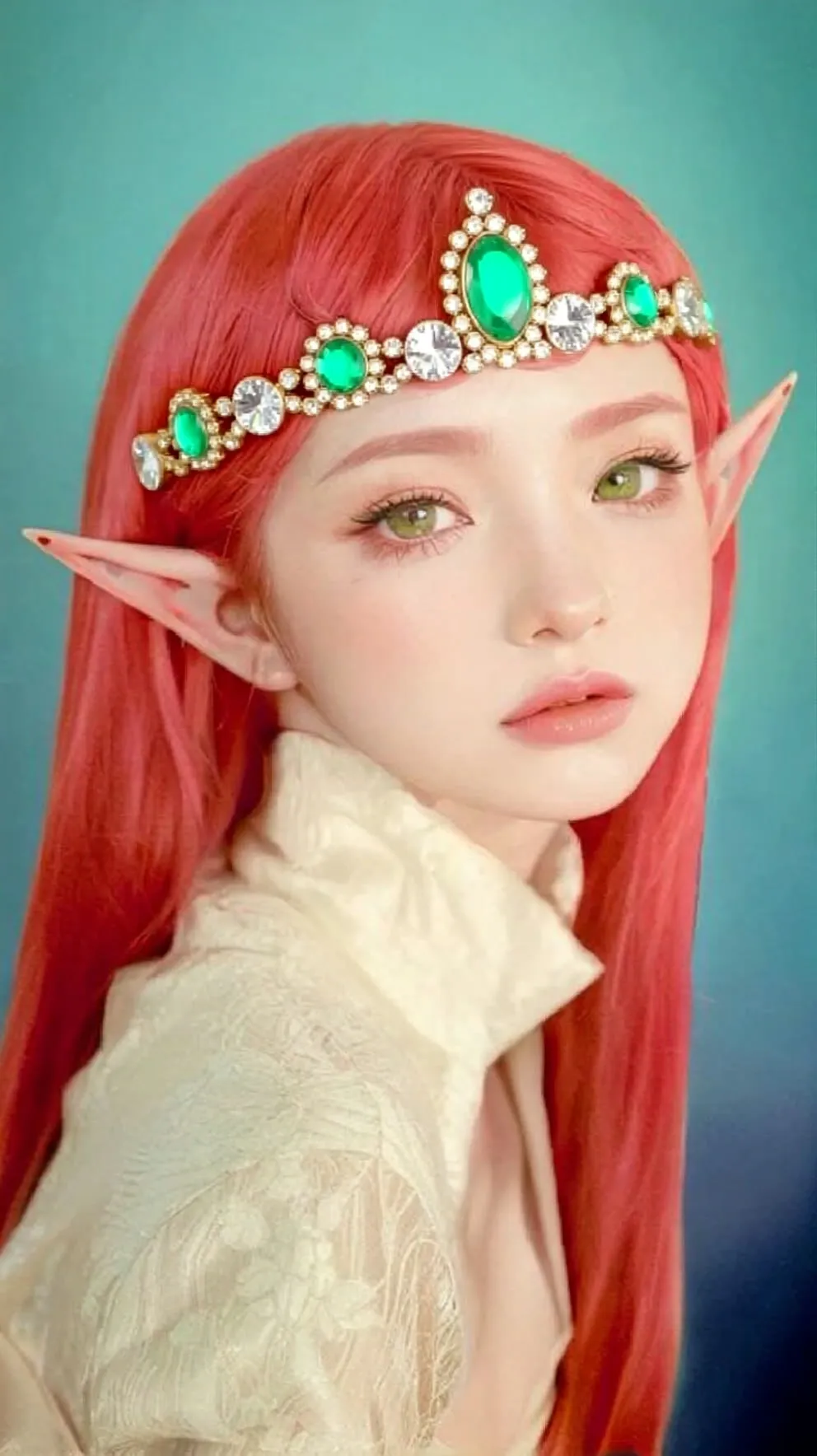
Qwen-Image-Edit Virtual Try-On
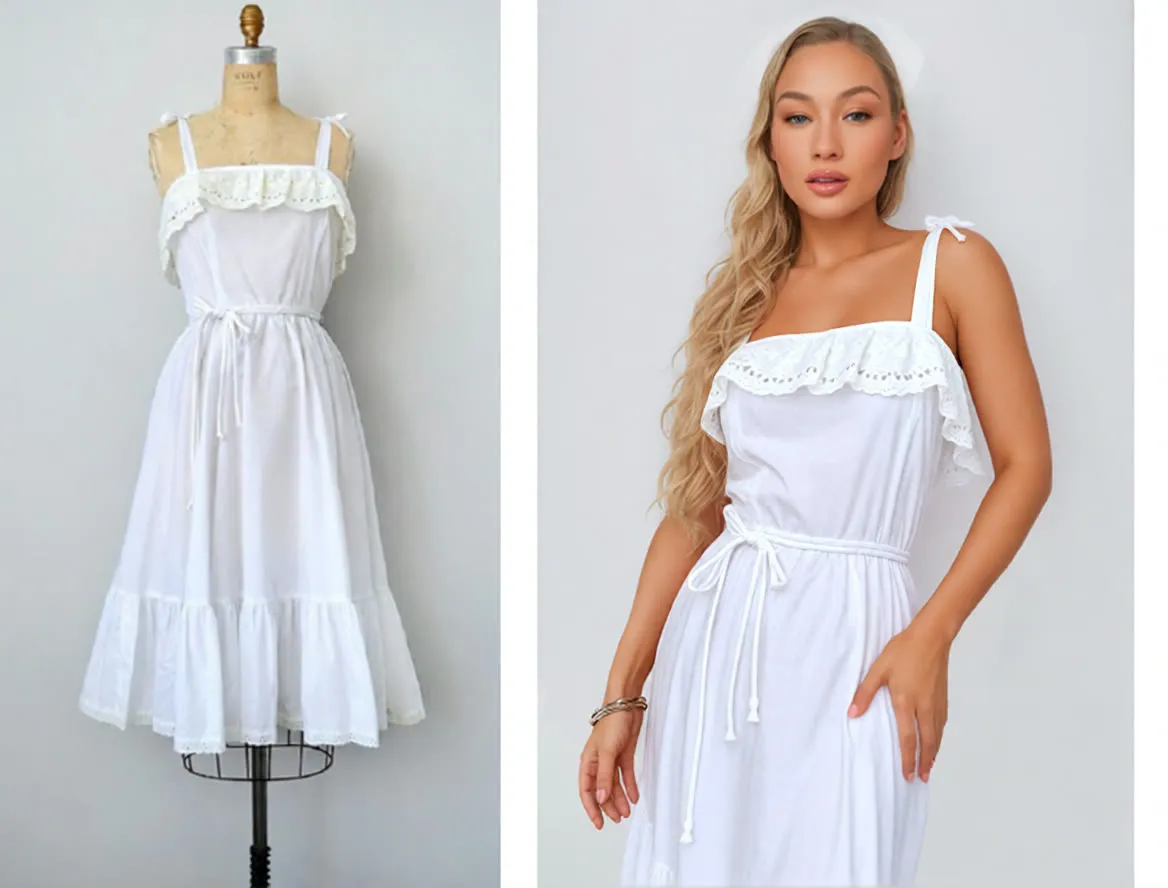
Provide a photo of a garment and a photo of a person, and the workflow dresses the person in that clothing. A fast try-on and image-to-image workflow for fashion and e-commerce.
- L40S
- Image editing
- Free template
How it works
The workflow loads qwen_image_edit_fp8_e4m3fn.safetensors with the qwen_2.5_vl_7b_fp8_scaled text encoder and qwen_image_vae. Two LoRAs are stacked: clothes_tryon_qwen-edit-lora, which teaches the model the try-on task, and Qwen-Image-Lightning-8steps-V1.1 for faster sampling. It uses core nodes only, with no custom node packages.
Both input images are resized with ImageScaleToMaxDimension and ImageResizeKJv2, then joined side by side with ImageStitch. The combined image is scaled with ImageScaleToTotalPixels and encoded with VAEEncode. Two TextEncodeQwenImageEdit nodes handle the positive and negative conditioning. ModelSamplingAuraFlow and CFGNorm adjust the model before KSampler runs.
A ResolutionSelector sets output size, and VAEDecode writes the final image.
Tips
- Put the garment on the left and the person on the right to match the example prompt.
- Use a flat, clearly visible garment photo for the best transfer.
- Keep the prompt simple and direct, and change the seed if the first fit looks off.
- The Lightning LoRA is the reason sampling stays fast, so leave it enabled for quick results.
- Try other edits with the same graph, since it is a general two-image Qwen-Image-Edit setup. The try-on LoRA simply makes clothing swaps more reliable.
What you can use it for
- Virtual try-on for fashion listings
- Outfit previews for customers
- Styling mockups
- Fast clothing swaps on model photos
Run it in three steps
Open the template
Click Run on ComfyDeploy. The workflow, its custom nodes and models are set up for you on a cloud machine.
Add your inputs
Provide clothing image and person image in the playground or the ComfyUI editor.
Run, share or deploy
Run it on an L40S, share it with your team as a playground, or deploy it as an API endpoint.
Frequently asked questions
What GPU does this try-on workflow need?
It is set to run on an L40S GPU on ComfyDeploy. It loads qwen_image_edit_fp8_e4m3fn.
What does the prompt look like?
The example is put the clothes on the left onto the person on the right, which matches how the two images are stitched together.
How do I run it as an API?
Deploy it on ComfyDeploy and send the two images and a seed to the endpoint. The two image inputs and seed are the exposed fields.