Character and Scene Integration (Kontext)
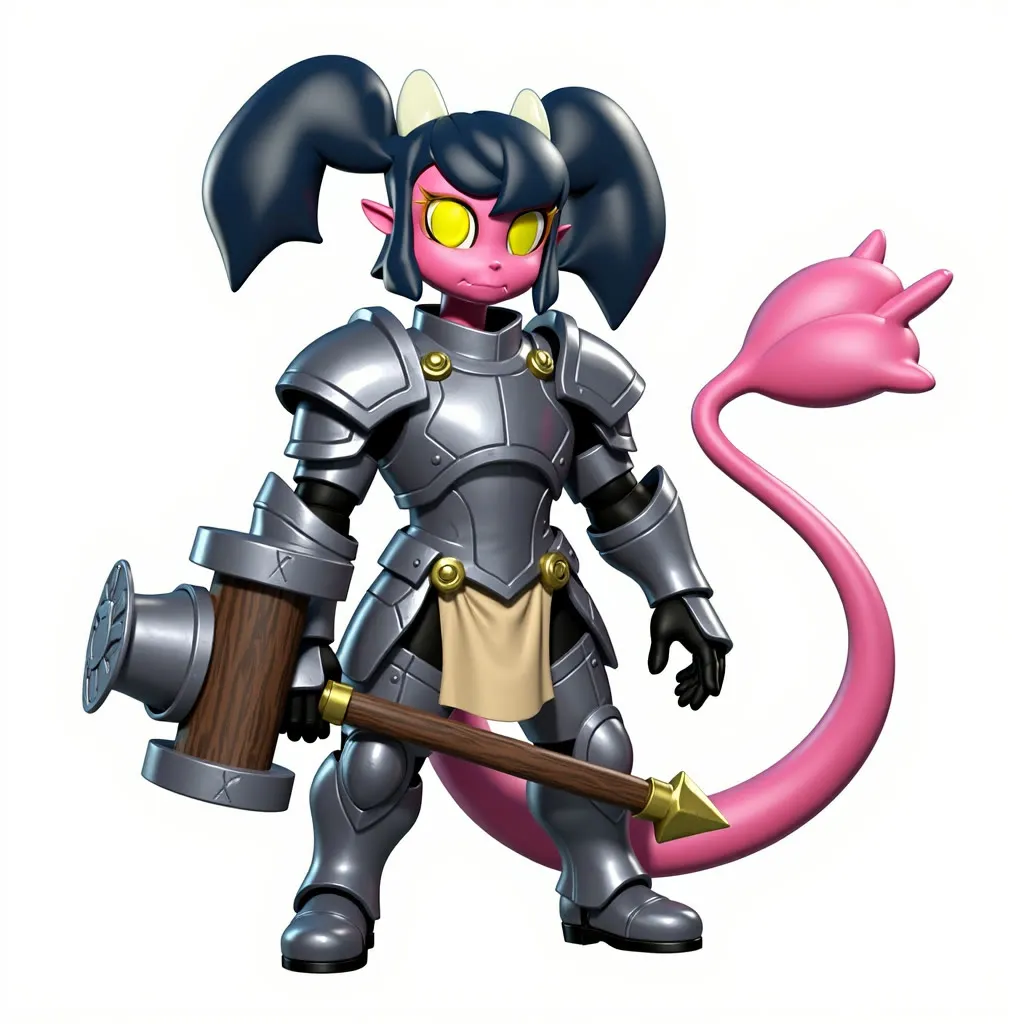
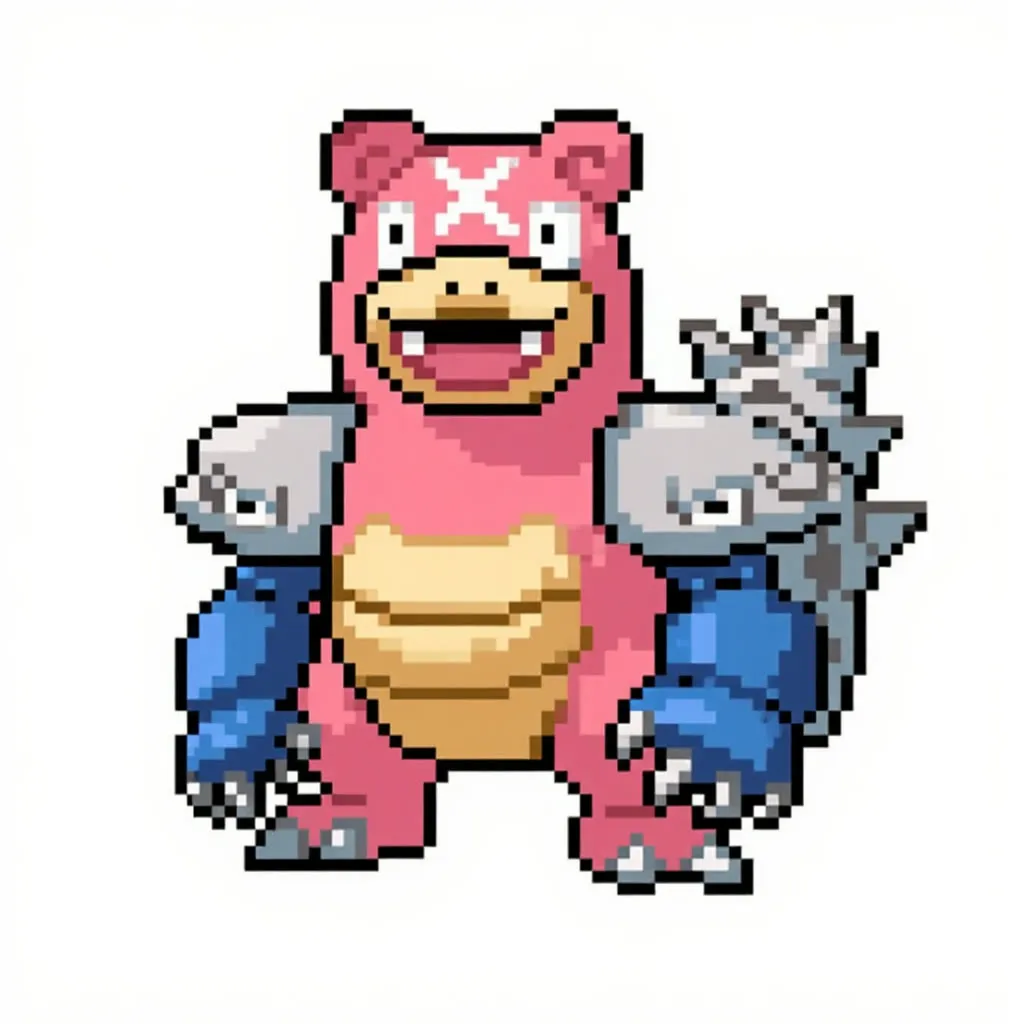
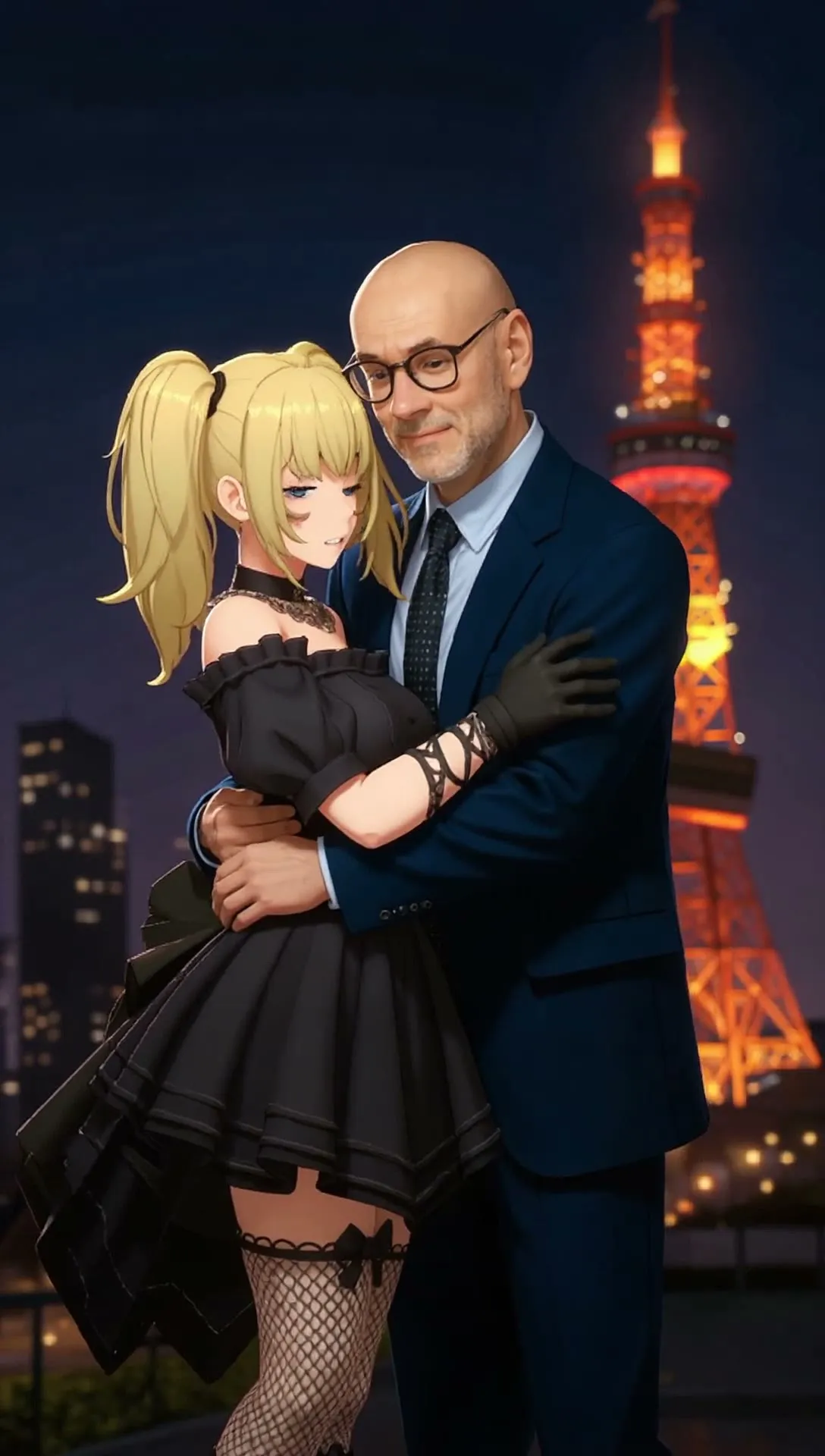
Upload a subject image and a background image and get the character composited into the scene with matching light and shadows. The background sets the output aspect ratio.
- L40S
- Image editing
- Free template

How it works
The graph runs flux1-kontext-dev through UNETLoader, with clip_l and t5xxl_fp16 as text encoders and ae.safetensors as the VAE. Two LoRAs are loaded: FLUX.1-turbo-Alpha to cut the number of sampling steps, and spatial-character-test, which teaches the model to place a subject in a scene.
Both images go through FluxKontextImageScale and VAEEncode. The OminiKontextConditioning and OminiKontextModelPatch nodes (spatial-aware conditioning) combine the subject latent and the background latent, while ReferenceLatent and FluxGuidance steer the edit. KSampler produces the result and VAEDecode returns it.
For cleanup, BiRefNetRMBG creates a subject mask, GrowMask expands it slightly, and the LayerStyle ImageBlendAdvance node blends the result. Custom node packages used are comfyui-rmbg and comfyui_layerstyle, plus comfyui-deploy for the inputs.
The default prompt asks the model to add the character to the scene and integrate it with matching lighting and contact shadows. A note in the workflow says the prompt can stay short, but you should check the output against it.
Tips
- Keep the subject on a clean background so the mask is accurate.
- Keep the prompt close to the default wording about lighting and contact shadows; it is what the workflow was built around.
- Try several seeds, since placement and scale change from run to run.
- Match the subject and background in perspective for the most natural result.
What you can use it for
- Dropping a character into a concept-art background
- Placing a product or mascot into a lifestyle scene
- Quick scene mockups for storyboards
- Consistent character shots across several backgrounds
Run it in three steps
Open the template
Click Run on ComfyDeploy. The workflow, its custom nodes and models are set up for you on a cloud machine.
Add your inputs
Provide subject image and background image in the playground or the ComfyUI editor.
Run, share or deploy
Run it on an L40S, share it with your team as a playground, or deploy it as an API endpoint.
Frequently asked questions
What GPU does this Kontext character integration workflow need?
The recommended GPU is the L40S. ComfyDeploy provisions it for you, so there is nothing to install.
Does the background control the output size?
Yes. The input notes say the background image controls the final aspect ratio, so crop your background to the shape you want first.
How do I run this character integration workflow as an API?
Deploy the workflow on ComfyDeploy and call the generated endpoint. The ComfyUIDeployExternal input and output nodes in the graph become the request and response fields.
Related workflows
All Flux Kontext workflowsDate Scene Image and Video (Kontext and Seedance)
No GPU needed